


Navigating the world of digital game purchases can seem daunting at first, but Steam simplifies the process of buying, downloading, and managing your PC games efficiently. Whether you’re new to gaming or just switching platforms, understanding how to purchase games on Steam ensures you get the most out of this popular digital distribution service. This guide walks you through every step, from installing the software to completing your purchase, so you can start playing your favorite titles without hassle.
Steps
Downloading and Installing Steam
Begin by visiting the official Steam website at store.steampowered.com/about. Here, you will find the download link for the Steam client compatible with both Windows and Mac operating systems. Download the installer and run it, following the on-screen instructions to complete the installation process. During setup, you will be prompted to create a Steam account—choose a unique username and a strong, memorable password to secure your account. This account will be your gateway to purchasing, managing, and playing your games.
Launching the Steam Application
Once installation is finished, open the Steam software. It should automatically launch or appear as an icon on your desktop or taskbar. If it doesn’t open automatically, locate the icon, right-click, and select “Open.” Upon launching, log into your account with your credentials. If you’re new, you’ll need to sign up and verify your email address, which ensures account security and access to features like game ownership history and refunds.
Searching for Games
With Steam running, access the store by clicking on the “Store” tab at the top of the interface. Use the search bar to find specific titles or browse through various categories, genres, or curated lists. For more refined options, click on the magnifying glass icon next to the search bar and select “advanced search.” This feature allows filtering by genre, price range, developer, publisher, system requirements, and user ratings. Keep an eye on current deals and top sellers, which are prominently displayed on the store’s main page.
Viewing and Selecting Games
Click on game titles that interest you to view detailed information. The game’s page includes trailers, screenshots, reviews, system specifications, and feature highlights, helping you make informed choices. Reading user reviews can provide insights into gameplay quality and potential issues. If a game meets your interests and system capabilities, you can proceed to purchase.
Adding Games to Your Shopping Cart
On the game’s page, click the “Add to Cart” button. The cart icon at the top right corner will update to reflect your selected items, showing the number of games added. Prices, discounts, and sale information are displayed alongside each game. If you haven’t already, you will be prompted to enter your payment details—Steam accepts credit/debit cards, PayPal, and Steam Wallet funds, which can be topped up with prepaid cards.
Proceeding to Checkout
When you’re ready to finalize your purchase, click on the cart icon. Review your selected items and click “Proceed to Checkout.” Here, you can choose to buy the game for yourself or gift it to someone else. If gifting, enter the recipient’s email address or select the option to have the game unlocked directly within their Steam account. Confirm your payment information and review the purchase details before proceeding.
Completing Your Purchase
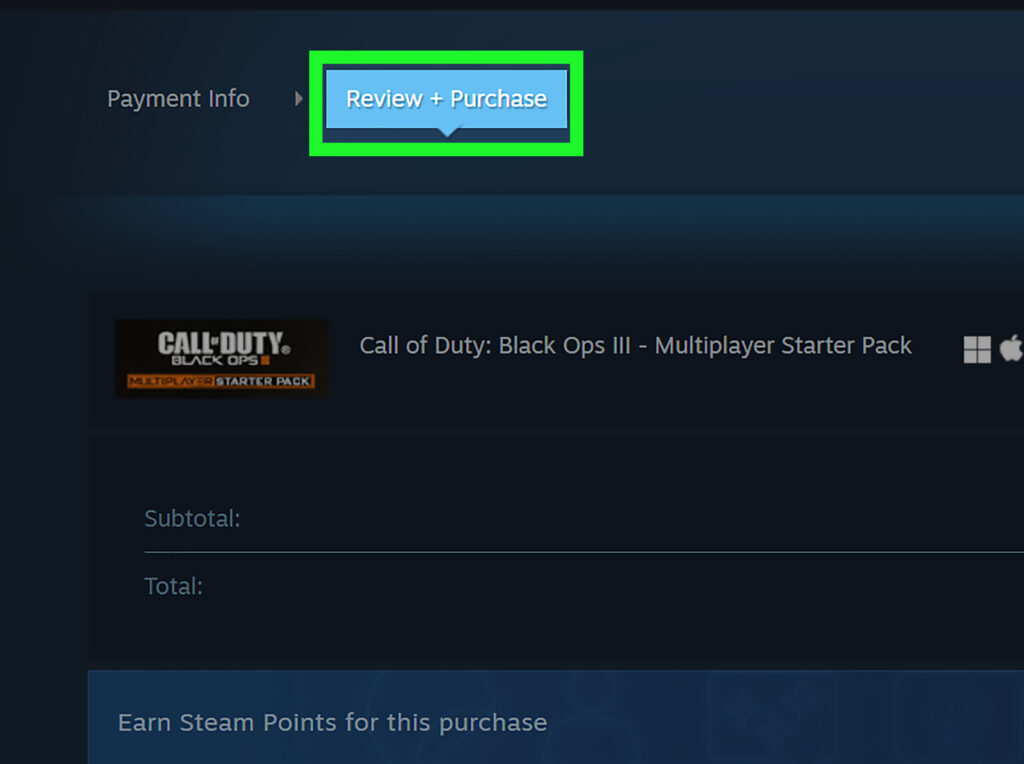
Finally, click the “Purchase” button after agreeing to the terms and conditions. Your payment will be processed securely, and the game will be added to your library. You can access your library from the Steam interface at any time, where all your purchased titles are stored for download and play. If you encounter issues or want to revisit your transaction, Steam keeps a detailed purchase history accessible via your account settings.
—
Steam frequently hosts sales and promotional discounts, so it’s worth checking back regularly or signing up for notifications to snag popular titles at reduced prices. For further insights into managing your gaming studio or enhancing your development projects, consider exploring resources like building a successful video game development studio from the ground up. Additionally, if you’re working on multiplayer or game modification projects, knowing how to assign developer permissions in your Roblox game can be invaluable.
By following these steps, you’ll become proficient at purchasing PC games through Steam, ensuring a smooth and enjoyable gaming experience from download to gameplay.