Mastering Steam Game Streaming to Your TV
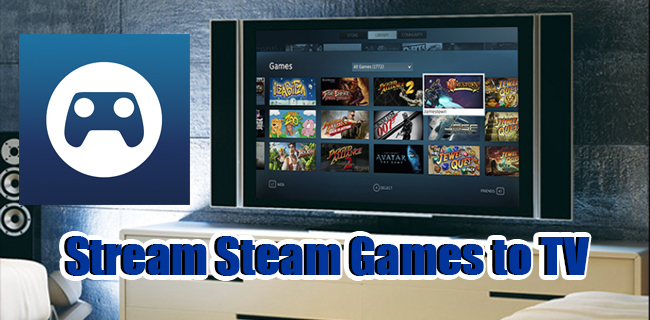
Streaming your favorite Steam games directly to your television can significantly enhance your gaming experience, offering a more immersive and comfortable way to play. Whether you’re using a smart TV, a streaming device, or a console, there are multiple methods to achieve smooth game streaming from your PC. This guide explores various options including Chromecast, Fire TV, Roku, and Apple TV, providing detailed step-by-step instructions to help you set up and optimize your game streaming setup.
Streaming Steam Games via Chromecast
Transforming an older TV into a smart display is straightforward with a Chromecast dongle, which seamlessly integrates with many devices and supports Steam Link functionality. With Chromecast, you can easily mirror your PC games onto your TV, enabling cross-platform play and remote gaming capabilities.
To get started with streaming Steam games through Chromecast:
- Power on your TV with Chromecast connected.
- Download and install the “Steam Link” app from the Google Play Store.
- Launch the app and ensure your PC is running Steam and logged in.
- On your PC, open Steam, go to the “Steam” menu, and select “Settings.”
- Navigate to “Remote play” and ensure “Enable Remote Play” is checked.
- Return to your TV, open the Steam Link app, and it will prompt you for your PC’s PIN.
- Enter the PIN displayed on your PC screen.
- Once connected, the app will test your network connection. For optimal performance, networks operating below 5GHz may not provide the best experience. To improve streaming quality, avoid other bandwidth-heavy activities during gameplay and consider connecting your Chromecast directly to the router via Ethernet for more stable connectivity. For detailed network recommendations, consult the Steam Link network setup guide.
Streaming Steam Games to Fire TV
Amazon’s Fire TV devices, including Fire Stick, Fire TV 4K, and Fire TV Cube, do not natively support the Steam Link app. However, you can sideload the app using a straightforward process, allowing you to stream games onto your Fire TV.
Follow these steps to set up Steam streaming on Fire TV:
- Power on your Fire TV device and access the “Settings” menu.
- Navigate to “My Fire TV” > “Developer options.”
- Enable “ADB Debugging” and “Apps from Unknown Sources.”
- Install the “Downloader” app from the app store.
- Launch “Downloader” and input the URL of the trusted APK for Steam Link from a reputable source or the official community page.
- Download and install the APK, then launch the Steam Link app from your Fire TV home screen.
- On your PC, open the Steam client, go to “Settings,” then “Remote Play,” and check “Enable Remote Play.”
- Pair your controller or skip this step if you prefer.
- The app will prompt you to enter a PIN from your PC. Enter the code to establish the connection.
- Once connected, select a game from your library and start playing.
For more advanced setup instructions, including security considerations during sideloading, refer to this detailed guide.
Streaming Steam Games to Roku
Since Roku devices do not support the Steam Link app directly, the only viable workaround is screen mirroring from a Windows PC. This method introduces some latency, so it’s better suited for casual gaming rather than fast-paced titles.
To mirror your Steam games onto Roku:
- Ensure both your PC and Roku are connected to the same Wi-Fi network.
- On your Roku, go to “Settings” > “System” > “Screen mirroring” and set the mode to “Prompt” or “Always allow.”
- On your PC, press “Windows + P” and select “Connect to a Wireless Display.”
- Choose your Roku device from the list, then allow the connection.
- Launch Steam on your PC, log in, and start the game you want to play.
- The game will appear on your TV through the Roku screen mirror. Keep in mind that only Roku OS versions 7.7 or higher support this feature, making it a viable but less responsive option compared to dedicated streaming solutions.
Streaming Steam Games to Apple TV
Apple TV offers official support for Steam streaming via the “Steam Link” app, provided you have a compatible device. To set up:
- Download “Steam Link” from the App Store on your Apple TV.
- On your PC, open Steam, go to “Settings,” then “Remote Play,” and activate remote streaming.
- Launch the Steam Link app on Apple TV and follow the on-screen instructions.
- Pair your controller or use the remote, then select your PC from the list.
- Enter the PIN displayed on your Apple TV into your PC.
- After network testing, you can select and launch your games for streaming.
For optimal performance, ensure your Apple TV is running the latest iOS or tvOS version, such as iOS 16.1 beta, which has been reported to resolve many connectivity issues. Using a 5GHz Wi-Fi network and connecting devices via Ethernet cables can significantly improve streaming quality.
Alternative Methods for Steam Game Streaming
While the Steam Link app remains the most reliable official solution, other options exist. For instance, if you have a compatible NVIDIA GPU, exploring open-source alternatives like Moonlight can provide additional flexibility and potentially better performance depending on your hardware setup.
In conclusion, streaming Steam games to your TV is achievable through various means tailored to your devices and network capabilities. Each method offers different advantages and considerations, so choose the one that best fits your gaming setup and preferences. For further insights into optimizing your gaming environment or expanding your development skills, consider exploring resources on building your own game studio.
—
Have your own streaming tips or preferred methods? Share your experience in the comments below.