Mastering Rapid Full-Screen Launches for Steam Games
Getting your Steam games to start directly in full-screen mode can significantly enhance your gaming experience by reducing setup time and avoiding distractions. Whether you’re aiming for immersive gameplay or just want a seamless transition from your desktop, knowing the various methods to achieve this can save you time and frustration. This guide explores multiple approaches, from adjusting launch options within Steam to configuring in-game settings and utilizing Steam’s Big-Picture mode, ensuring you can optimize your gaming setup efficiently.
Adjusting Launch Options in Steam for Immediate Full-Screen Mode
The most straightforward way to force your Steam titles to launch in full-screen is by modifying their launch options within the Steam client. This method works well for most games and is easy to implement:
- First, open your Steam application and navigate to your game library.
- Locate the game you want to run in full-screen.
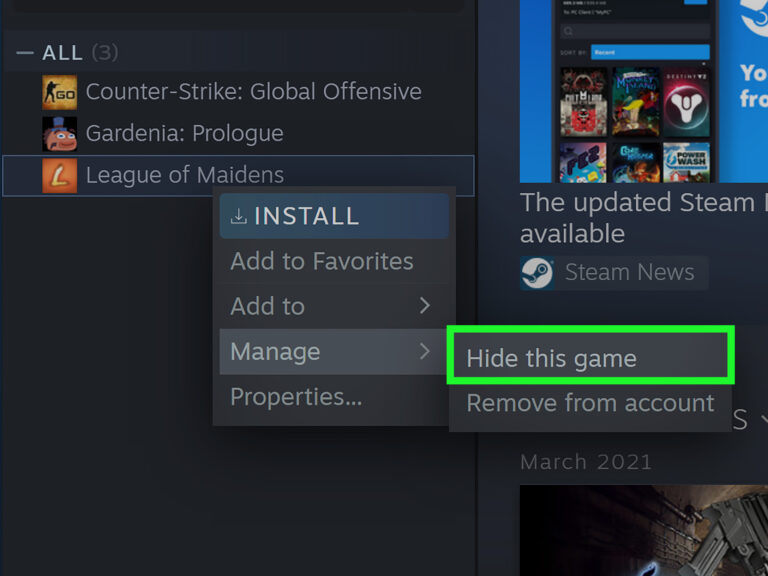
- Right-click on the game title and select “Properties” from the context menu.
- In the new window, click on the “General” tab.
- Find the “Launch Options” input box.
- Type in `-fullscreen` to instruct the game to start in full-screen mode automatically.
- Close the properties window by clicking the “X” or pressing Enter.
- Launch your game, and it should open in full-screen without additional adjustments.
If you prefer to start the game in windowed mode, simply replace `-fullscreen` with `-windowed`. Keep in mind that some titles with their own custom display settings or proprietary clients might override these options. For example, titles like “AdVenture Capitalist” feature dedicated display windows that may prevent full-screen enforcement through launch options alone. However, the majority of Steam games respond reliably to these commands. For more advanced customization, you might explore tools or mods that unlock deeper display controls, such as the game development enhancements.
Configuring In-Game Settings for Full-Screen Mode
Another highly reliable method involves adjusting the display options within the game’s own settings menu. Most modern titles include video or display settings where you can select either full-screen or windowed modes and modify resolution parameters:
- Launch your game normally through Steam.
- Access the game’s main menu and locate the “Settings” or “Options” section.
- Navigate to the “Video” or “Display” settings.
- Select “Full-Screen” mode from the available display options.
- Adjust the resolution to match your monitor’s native resolution for the best visual quality.
- Save your settings and restart the game if necessary.
This method proves effective across various genres, including first-person shooters, strategy games, and even some creative applications. It mirrors how you might set your desktop or other applications, like 3d mobile app development, to optimize display output. Even if you’re using other communication platforms or games, configuring display settings internally ensures consistency and stability during gameplay. Remember, even offline, this approach remains dependable.
Using Steam Big-Picture Mode for Full-Screen Gaming
For a more immersive experience, Steam’s Big-Picture mode is an excellent option. It launches the entire Steam interface in full-screen mode and often starts games in full-screen as well:
- Open the Steam client.
- Locate the “Big Picture Mode” icon, which appears as a small monitor in the upper right corner of the interface.
- Click this icon to switch into Big-Picture mode, which maximizes Steam into a full-screen interface.
- From there, navigate to your game library and launch your desired game.
- Many games will automatically start in full-screen when launched from Big-Picture mode, providing a console-like experience.
This method is particularly useful if you prefer a simplified, immersive gaming environment or want quick access to settings without desktop distractions. For a more streamlined experience, consider customizing your controller or keyboard shortcuts within Big-Picture mode. Keep in mind that some titles may still require manual adjustments through their internal settings or launch options for optimal full-screen performance.
Additional Tips and Troubleshooting
It’s important to note that certain games with unique display configurations or third-party launchers might not respond to these methods. In such cases, consulting the game’s official support or community forums can offer tailored solutions. Additionally, if you encounter errors or unexpected behavior, removing or adjusting launch options can often resolve conflicts. For example, deleting the text in the “Launch Options” box can revert to default settings, allowing the game to launch normally.
For developers or enthusiasts interested in customizing game behavior further, exploring mods or development tools, like those described in unlocking game development, can provide deeper control over how games start and display. Moreover, understanding the basics of 3d mobile app creation can help in designing applications that adapt well to various display modes.
Finally, if you’re looking to expand your team or find skilled developers, reviewing comprehensive hiring guides for game development can be beneficial.
Mastering these methods ensures you can launch your favorite Steam games in full-screen mode quickly and consistently, enhancing your overall gaming experience.