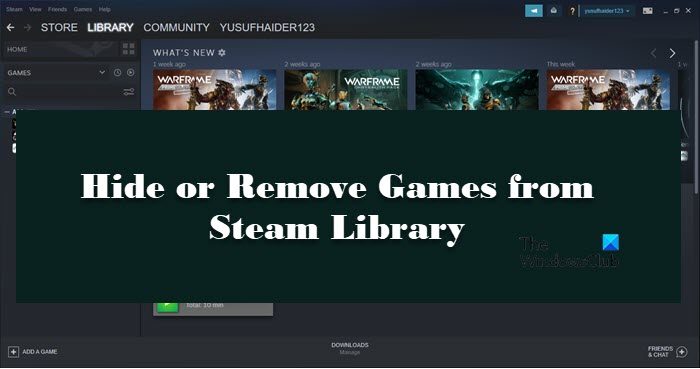
Mastering How to Manage Your Steam Game Library: Hiding and Removing Titles
Navigating your Steam library can sometimes become overwhelming, especially if you have numerous games that you no longer play or wish to keep private. Fortunately, Steam offers flexible options to organize your collection—whether by hiding games temporarily or removing them entirely. In this guide, we will explore effective methods to conceal or eliminate games from your Steam library, ensuring a clutter-free and personalized gaming experience.
How to Hide or Remove Games from Your Steam Library
Many gamers find it useful to hide certain titles they don’t play regularly or want to keep private. Hiding a game simply removes it from your main library view but keeps it accessible if needed. Conversely, removing a game deletes it from your account entirely. Understanding the distinction between these options helps you manage your collection more effectively.
Hiding Games in Steam
Hiding games is a quick way to declutter your library without uninstalling or deleting the game permanently. This feature is ideal for organizing your collection or maintaining privacy.
To hide games in Steam, follow these simple steps:
- Launch the Steam client and log into your account.
- Navigate to your Library.
- Locate the game you wish to hide, right-click on its title.
- Select Manage and then choose Hide this game.
- The game will now be hidden from your main library view.
To view your hidden titles, click on View in the top menu, then select Hidden Games. This will display all titles you have concealed, allowing you to access or manage them as needed.
If you decide to unhide a game, right-click on it within the Hidden Games section, select Manage, and then choose Remove from Hidden. The game will reappear in your main library.
Note: To maintain privacy from friends, you can also set your game details to private. This prevents your friends from seeing your game list, achievements, and playtime, which can be adjusted in your profile’s privacy settings. To do this:
- Open Steam and go to your profile.
- Click on Edit Profile.
- Navigate to Privacy Settings.
- Set Game details to Private.
This way, your gaming activity remains confidential, and you retain control over what others see.
How to Remove Games from Your Steam Library
Sometimes, games become redundant or unwanted, and you may choose to remove them permanently from your account. Keep in mind that deleting a game will uninstall it across all your devices and accounts. If you wish to retain the game for other accounts, consider creating a backup before removal.
To remove a game from your Steam account, proceed with these steps:
- Open Steam and go to your Library.
- Right-click on the game you want to delete.
- Select Manage and then click Remove from account.
- Confirm the action when prompted by clicking Remove.
This process deletes the game from your account and library.
How to Permanently Delete a Game
If you are certain about permanently removing a game, including all associated files, follow these additional steps:
- First, uninstall the game from your device to prevent any residual files.
- Open Steam and click on Help in the top menu.
- Select Steam Support.
- Choose the game from your recent products list.
- Click on I want to permanently remove this game from my account.
- Confirm by clicking Remove the listed game from my account permanently.
This method ensures the game is fully erased from your Steam profile.
Additional tip: For smoother removal, ensure the game is uninstalled before initiating the account deletion process to avoid leftover files cluttering your system.
Can Friends See Hidden Games on Steam?
By default, hidden games are not visible in your library but can still be seen on your profile if your privacy settings allow it. To prevent friends from seeing certain games, you should set your game details to private, as explained earlier. This hides your game list, achievements, and playtime from others, providing greater privacy.
If you want to hide a game specifically from your friends without making your whole profile private, set the Game details to private in your privacy settings. Remember, you can always change these settings later to reveal your gaming activity again.
What Does Hiding a Game in Your Steam Library Accomplish?
Hiding a game essentially moves it from your main library view into a designated hidden section. This does not delete or uninstall the game; it simply organizes your collection more neatly. This feature is particularly useful when managing a large number of titles, making it easier to find your favorite games without clutter.
Moreover, for privacy reasons, hiding certain titles prevents others from seeing specific games on your profile or in your library. If you no longer want a game to appear publicly, you can also consider removing it entirely from your account.
Note: Hidden games will still appear on your profile unless you adjust your privacy settings. To hide a game completely from your profile, you may need to unpublish or modify your profile visibility options.
Will Hidden Games Be Visible on Your Profile?
Yes, hidden games will still be visible on your Steam profile if your profile’s privacy settings are set to public. Hiding a game only removes it from your library view but does not affect its visibility on your profile page. To prevent games from appearing publicly, you must set your profile or game details to private.
If you wish to keep certain titles completely out of sight, consider removing them from your account altogether. This method is more definitive but also more permanent.
That’s it!
For more advanced management, including optimizing your game library or exploring game development techniques, you might want to look into resources on scaling your vision with dedicated teams or understanding the role of an indie game developer. Additionally, if you’re curious about the future of the industry, check out leading web3 game studios you should know in 2025. For those interested in game customization, learn how to enhance cheat modes for game dev tycoon to unlock hidden features safely.