Locating Steam Game Files Across Windows, macOS, and Steam Deck
Understanding where Steam stores your game files on different platforms is essential for managing backups, troubleshooting issues, or recovering lost data. Whether you’re using Windows, macOS, or SteamOS on a Steam Deck, knowing the default locations helps streamline your gaming experience. This guide provides detailed instructions for finding your Steam game directories on each system and offers tips for recovering missing or deleted files using reliable tools like EaseUS Data Recovery Wizard.
When dealing with accidental deletions or corruption, being aware of these locations can save you time and effort. Additionally, if you want to optimize your storage setup or transfer game data between devices, understanding these paths is invaluable. For comprehensive management of your game files and system backups, consider exploring advanced techniques in game development or system maintenance, such as achieving high ratings in simulation games like Game Dev Tycoon. You can learn more about this process here.
—
Locating Steam Game Files on Windows
Most gamers prefer playing on Windows PCs due to their versatility and performance. By default, Steam installs and stores game files in a specific directory, but many users customize this location to better suit their storage preferences.
Default Save Location for Steam Games on Windows
To find where Steam stores your game files by default:
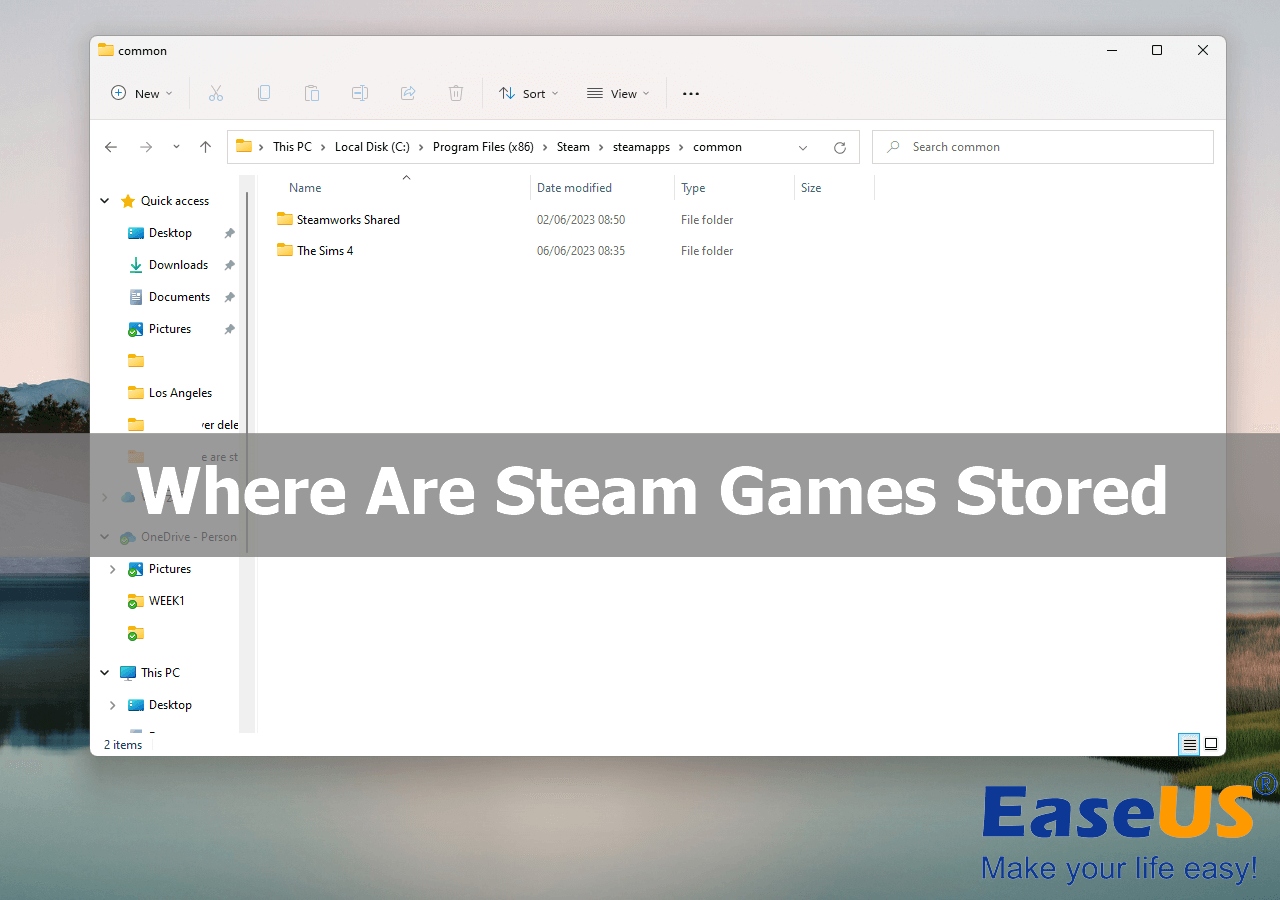
1. Launch File Explorer on Windows 11 or 10.
2. Navigate to the folder: `C:Program Files (x86)Steamsteamappscommon`. This is the typical directory where Steam keeps installed game files.
3. Inside the “common” folder, you’ll find individual folders named after each game, containing all associated data.
Tip: Regularly backing up your game folders can prevent data loss caused by corruption or accidental deletion. If issues like missing saves or corrupted files occur, restoring from backups or using data recovery tools can be beneficial.
Changing the Default Game Storage Location
If you prefer not to store game files on your C drive, Steam allows you to specify alternative library folders:
1. Open Steam and go to “Settings.”
2. Select “Downloads” and click on “STEAM LIBRARY FOLDERS.”
3. In the Storage Manager, click the “+” button.
4. Choose “Let me choose another location” and select your preferred drive or folder.
This flexibility helps manage disk space efficiently, especially on systems with limited storage.
Recovering Deleted Steam Files
Accidents happen, and sometimes game files are deleted unintentionally. Before attempting recovery, check your Recycle Bin. If the files are not there, professional recovery software like EaseUS Data Recovery Wizard can help retrieve lost data.
Steps include:
- Selecting the folder or drive where the files were stored.
- Running a deep scan to locate deleted or lost files.
- Restoring the files to a safe location, preferably different from the original to prevent overwriting.
This process is especially useful for recovering save files or game recordings that might not be re-downloadable.
—
Finding Steam Game Files on macOS
Mac users also utilize Steam, and the storage location differs slightly from Windows. macOS organizes application data within specific directories.
Default Steam Folder on Mac
To locate your game files:
1. Open Finder and choose “Go” from the menu bar.
2. Select “Go to Folder…” and input: `~/Library/Application Support/Steam/SteamApps`
3. Press Enter to access the folder containing Steam game data.
Within “SteamApps,” you’ll find “common” folders where individual game files reside. Regular backups can help safeguard your progress, especially when dealing with game issues or system reinstallation.
—
Accessing Steam Games on Steam Deck
The Steam Deck, a portable gaming device, runs SteamOS, which is based on Linux. Its file structure differs from traditional PCs.
Locating Games on Steam Deck
To find your game files:
1. Switch to Desktop Mode on Steam Deck.
2. Open the file manager and navigate to: `/home/deck/.local/share/Steam/steamapps/compatdata/`
3. Here, you’ll find data related to installed Steam games.
Managing game data on Steam Deck is similar to Linux systems, and understanding these paths can assist with backups or troubleshooting.
—
Final Tips and Troubleshooting
Knowing where your Steam games are stored across different platforms allows you to manage backups effectively, recover lost data, and troubleshoot issues more efficiently. If you encounter problems like missing files or need to free up storage, consider restoring files with trusted software or adjusting your library locations.
For those interested in optimizing their gaming or development workflows, exploring strategies to improve game ratings or increase creativity points can be valuable. For instance, developers aiming for top ratings in simulation games can learn more about game development best practices here.
Remember, maintaining organized and backed-up game files ensures smoother gameplay and less frustration when unexpected issues arise.
—
Frequently Asked Questions About Steam Game Storage
1. How can I restore missing or deleted Steam game files?
Begin by checking your Recycle Bin. If files are not there, use a data recovery tool like EaseUS Data Recovery Wizard to scan and restore your lost data.
2. Where exactly are Steam games stored on a Windows PC?
Typically, they are located in `C:Program Files (x86)Steamsteamappscommon`. You can access this path directly through File Explorer.
3. How do I add a new storage location for Steam games?
In Steam, go to “Settings” > “Downloads” > “STEAM LIBRARY FOLDERS,” then click “+” and select your desired drive or folder.
4. Can I move my existing Steam games to another drive?
Yes. You can either change the default library location or move existing games via Steam’s “Move Install Folder” feature within the game properties.
By understanding these storage locations and management techniques, you can ensure your gaming experience remains smooth and your data safe.