How to Run Steam Games with Administrator Privileges on Windows 11
Running games with administrative rights can be a vital step in troubleshooting issues, ensuring compatibility, and unlocking full system access for certain features. On Windows 11, the latest version of Microsoft’s operating system, there are several effective methods to launch Steam games as an administrator. Properly executing these steps can help prevent crashes, improve performance, and allow access to restricted files or folders, ultimately enhancing your gaming experience. This guide walks you through the reasons for elevating privileges, explains how User Account Control (UAC) functions, and provides step-by-step instructions for various methods to run Steam games with admin rights.
Understanding why and how to run your games as an administrator is essential. For example, some titles or mods may require elevated permissions to function correctly, or certain anti-cheat systems might enforce administrator access to prevent hacking. Additionally, applying these methods can resolve common launching errors and enable features that are otherwise restricted. However, always exercise caution and run only trusted titles as administrator to avoid security vulnerabilities. For more insights on optimizing system performance and game development strategies, you might explore rethinking the value of large scale game development.
This comprehensive guide covers multiple approaches, including setting the entire Steam client to run as administrator, adjusting game-specific executable properties, creating shortcuts with elevated privileges, using compatibility modes, and launching games via command line. Each method offers different levels of convenience and control, allowing you to choose based on your preferences and needs.
—
Why Run Steam Games as Administrator?
Operating your games with administrative privileges can address several common issues and unlock additional capabilities:
- Resolving Compatibility Problems: Certain games or applications require elevated permissions to access hardware components or system files necessary for proper operation.
- Fixing Launch Failures: Permission-related errors often prevent games from starting correctly, especially if they need to modify files or access protected directories.
- Accessing Restricted Folders: When game save files, mods, or external tools are stored in protected system locations, administrator rights may be needed for proper access.
- Enabling Advanced Features: Mods, overlays, or third-party tools may depend on administrator privileges to function seamlessly.
- Mitigating DRM or Anti-Cheat Restrictions: Some security measures enforce elevated permissions to prevent cheating or hacking.
However, it’s crucial to run only trusted games with these privileges to avoid potential security risks.
—
Understanding User Account Control (UAC) in Windows 11
Windows 11’s User Account Control (UAC) acts as a safeguard by prompting for permission or administrator credentials when launching applications that require elevated rights. These prompts help prevent unauthorized or malicious changes to your system. When you run a game as an administrator, Windows grants full control over your system, which can sometimes interfere with security settings or cause unintended consequences if not managed carefully. Adjusting UAC settings can be done via the Control Panel, but it’s generally recommended to only modify these settings temporarily for troubleshooting purposes.
—
Methods to Run Steam Games as Administrator in Windows 11
There are several effective approaches to launching your games with administrator privileges:
- Setting the entire Steam client to always run as administrator
- Configuring individual game executables for elevated permissions
- Creating shortcuts with admin rights
- Using compatibility mode or command prompts
- Modifying game-specific properties
Below, each method is detailed step-by-step.
—
1. Running the Entire Steam Client as Administrator
Since Steam manages game launching, executing Steam itself with elevated rights ensures all games started through it inherit these permissions. This is often the most straightforward method.
- Locate Steam Executable:
- Typically found at `C:Program Files (x86)SteamSteam.exe`.
- Change Compatibility Settings:
- Right-click `Steam.exe` and select Properties.
- Navigate to the Compatibility tab.
- Check Run this program as an administrator.
- Click Apply and OK.
- Launch Steam:
- Open Steam normally; it will now run with elevated privileges.
- Start Your Game:
- Play as usual. The game launched through Steam will have admin rights.
Note: Running Steam as administrator may trigger UAC prompts every time, but it guarantees that all spawned game processes also run with elevated permissions. For a smoother experience, consider creating a shortcut that always runs as administrator.
—
2. Running a Specific Game as Administrator via Properties
If only one particular game needs to always run with admin rights, configuring its executable is effective:
- Find the Game’s Executable:
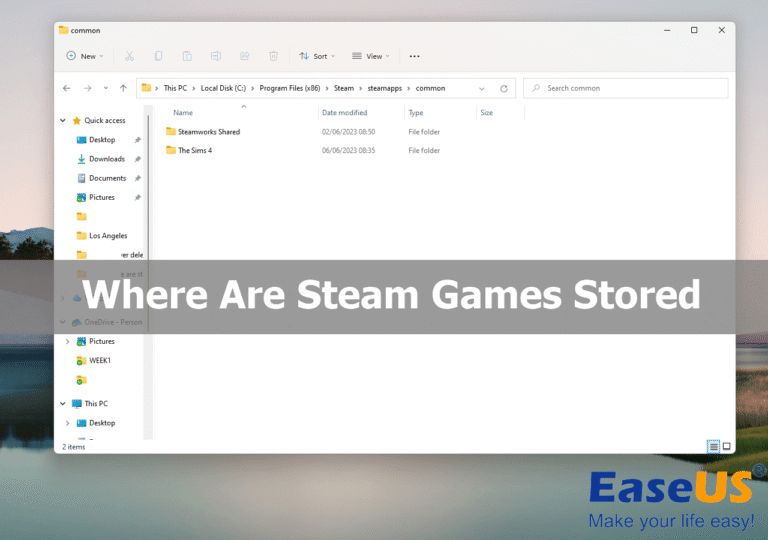
- Usually located in `C:Program Files (x86)Steamsteamappscommon` or a custom directory.
- Access Properties:
- Right-click the game’s `.exe` file and select Properties.
- Adjust Compatibility Settings:
- Go to the Compatibility tab.
- Check Run this program as an administrator.
- Click Apply, then OK.
- Launch the Game:
- Start the game directly or via Steam; it will now run with elevated rights.
Tip: To avoid repeated UAC prompts, consider creating a shortcut with the “Run as administrator” setting enabled, or modify the shortcut’s properties accordingly.
—
3. Creating a Shortcut to Run a Game as Administrator
This method allows quick access to launching a game with elevated privileges:
- Locate the Game Executable:
- Same as above.
- Create a Shortcut:
- Right-click the `.exe` file and select Create shortcut.
- Modify Shortcut Settings:
- Right-click the new shortcut and choose Properties.
- Go to the Shortcut tab.
- Click Advanced….
- Check Run as administrator.
- Click OK and Apply.
- Use the Shortcut:
- Double-click the shortcut to start your game with admin rights.
- Optional: Pin this shortcut to your taskbar or start menu for easier access.
—
4. Using Compatibility Mode for Running as Administrator
Compatibility mode can help run older games or troubleshoot issues:
- Right-click the game’s executable or shortcut.
- Select Properties.
- Navigate to the Compatibility tab.
- Enable Compatibility Mode:
- Check Run this program in compatibility mode for: and select an earlier Windows version if needed.
- Enable Administrator Rights:
- Check Run this program as an administrator.
- Apply and Launch:
- Click Apply, then OK.
This approach is especially useful for legacy titles that may not function properly on the latest OS.
—
5. Launching Games as Administrator Using Command Prompt or PowerShell
For advanced users, launching games manually with elevated rights via command line offers fine control:
- Open Command Prompt as Administrator:
- Click Start, type cmd, right-click Command Prompt, and select Run as administrator.
- Navigate to Game Directory:
- Use `cd` command, for example:
“`cmd
cd “C:Program Files (x86)SteamsteamappscommonYourGame”
“`
- Launch the Game Executable:
“`cmd
Game.exe
“`
- The game will now run with administrator privileges.
—
Additional Tips for Running Steam Games as Administrator
A. Automating Elevated Launches with Batch Files
Create a batch script to launch your game with admin rights:
“`batch
@echo off
cd “C:PathToGame”
powershell -Command “Start-Process ‘Game.exe’ -Verb runAs”
“`
Save as `.bat` and double-click to run the game as administrator without manual steps.
B. Using Third-Party Tools
Utilities like RunAsTool or Elevate can simplify launching applications with admin rights, bypassing UAC prompts. Download from reputable sources and use cautiously.
C. Adjusting UAC Settings
Disabling or lowering UAC can reduce prompts but compromises security:
- Navigate to Settings > Privacy & Security > Security > User Account Control.
- Adjust the slider accordingly.
- Re-enable UAC after troubleshooting to maintain system security.
D. Considerations for Game Mode and Admin Rights
While elevating privileges can resolve issues, some online games with anti-cheat systems might restrict or block operation if run as administrator. Always check game-specific recommendations.
—
Troubleshooting Common Issues
UAC Prompts Keep Appearing
- Solution: Set the game or Steam to always run as administrator via properties or shortcuts.
Games Fail to Launch Properly
- Solution:
- Verify integrity of game files through Steam.
- Update Windows 11 and graphics drivers.
- Run both Steam and the game as administrator.
- Disable conflicting background applications.
Compatibility Problems with Older Titles
- Solution:
- Use compatibility mode.
- Run as administrator.
- Apply game-specific patches or community fixes.
—
Additional Considerations
- Security Risks: Always run trusted games with elevated rights to prevent system vulnerabilities.
- Anti-Cheat and Multiplayer Restrictions: Some online titles with anti-cheat systems may limit or block operation if launched as administrator.
- Performance Impact: Running as administrator generally does not affect game performance but can influence hardware interactions.
- User Account Privileges: Make sure your Windows 11 account has administrator rights for these methods to work.
—
Final Thoughts
Applying administrator privileges to Steam games in Windows 11 can resolve various launch and permission issues, ensuring a smoother gaming experience. Whether configuring the entire Steam client, setting specific game executables, or using command line options, these techniques provide flexibility to suit your setup. Always prioritize security by only elevating trusted applications and keeping your system updated. For persistent problems or tailored solutions, consult official Steam support or community forums to find advice specific to your gaming environment.
Enjoy your gaming sessions without unnecessary interruptions!