How to Play Steam Games on Android Devices Without a PC in 2025
Playing Steam games directly on your Android device without the need for a traditional PC setup has become more accessible than ever. Thanks to advancements in game streaming technology and the proliferation of fast wireless networks, gamers can enjoy their favorite titles on the go, without being tied to a desktop or laptop. This guide explores the latest methods to stream Steam titles to your Android device, the hardware requirements, and tips to optimize your gaming experience. Whether you’re a casual player or a dedicated gamer, mastering these techniques will unlock a new realm of mobile gaming possibilities.
—
Why Stream Steam Games to Your Android Device?
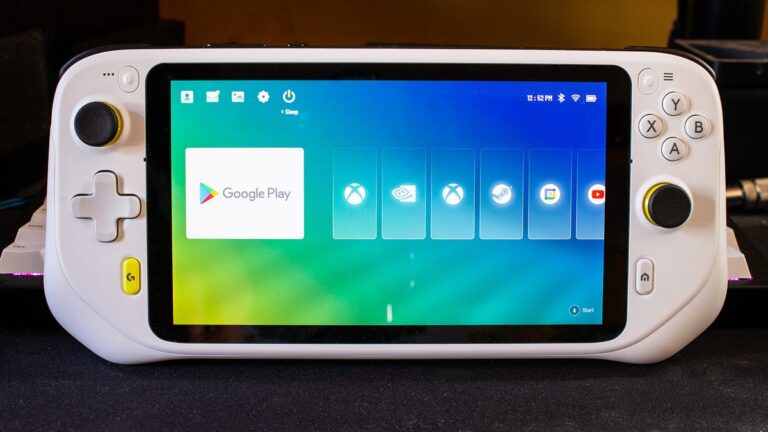
The convenience of gaming on your Android smartphone or tablet is undeniable. With the Steam Link app, users can effortlessly project their PC games onto a mobile screen, enabling gameplay anywhere within the same local network. Since triple-A titles are rarely optimized for mobile hardware, streaming remains the most practical way to enjoy high-quality
To get started, you’ll need to pair a Bluetooth or Steam controller with your Android device. Once connected, you’ll link your phone to the computer running Steam over a shared Wi-Fi network. The Steam Link app then acts as a bridge, transmitting the game from your PC to your Android device in real-time. This setup allows you to take advantage of the powerful hardware of your PC directly on your mobile device, without any need for emulators or complex configurations. For a detailed understanding of how to build such ecosystems, you can explore this resource on creating profitable app ecosystems.
—
Hardware Requirements for Seamless Streaming
Running Steam games on Android requires some fundamental hardware and network components. First, you need a gaming-capable PC or Mac that meets the following specifications: a dual-core processor with hyper-threading, at least 8GB of RAM, and a compatible operating system like Windows, SteamOS, macOS (Yosemite or newer), or Linux. Ensuring your computer can handle the game performance is crucial for a smooth streaming experience.
Next, a high-speed wireless network is essential. A 5GHz Wi-Fi connection with a minimum of 15 Mbps bandwidth is recommended to minimize latency and input lag. The faster and more stable your internet connection, the more responsive your gaming session will be. Additionally, you’ll need a controller, such as a Bluetooth gamepad or a keyboard and mouse setup, to enhance control responsiveness and overall gameplay.
Your Android device itself can be any model compatible with the Steam Link app. Remember that both your computer and Android device should be connected to the same Wi-Fi network to ensure a stable connection. Note that using a laptop with integrated graphics instead of a dedicated GPU can occasionally impact performance, especially with more demanding titles.
For further insights into system design, see building efficient mobile ecosystems.
—
How to Stream Steam Games to Your Android Device
Getting your Steam games onto your Android device involves a straightforward process. First, ensure your PC is set up to allow streaming by enabling In-Home Streaming within the Steam client settings. Then, download the Steam Link app from the Google Play Store. Once installed, follow these steps:
Step-by-Step Streaming Setup:
1. Enable Streaming on Your Steam PC
Open Steam on your computer, go to Settings, then navigate to the “Remote Play” section. Check the box to enable streaming and set a PIN code that you’ll use later for pairing.
2. Install the Steam Link App
Search for “Steam Link” in the Google Play Store, install it, and open the app.
3. Pair Your Controller
Connect your Bluetooth controller or keyboard/mouse to your Android device. Turn on your controller and pair it via Bluetooth settings. Ensure your controller is active and recognized by your device.
4. Launch Steam Link and Detect Your PC
Open the Steam Link app. It will automatically scan for computers on the same network. When your PC appears, select it. The app will prompt you to enter the PIN you previously set in Steam to establish a secure connection.
5. Establish Connection
Input the PIN on your PC when prompted. Once verified, the app will connect your Android device to your PC, enabling game streaming.
6. Start Gaming
Once connected, press “Start Playing” in the Steam Link app. It will launch Steam in Big Picture Mode on your Android device, allowing you to browse and launch your installed games directly on your mobile screen.
This method allows you to enjoy your Steam library virtually anywhere within your home network. For more detailed instructions, visit the official Steam Link support page.
—
Tips for Enhancing Your Steam Gaming Experience on Android
To maximize your enjoyment, consider these tips:
- Optimize Network Performance: Use a 5GHz Wi-Fi network and ensure minimal interference for stable streaming.
- Choose the Right Controller: A Bluetooth controller compatible with your Android device improves responsiveness and comfort.
- Adjust Streaming Settings: Within the Steam Link app, tweak streaming quality and resolution settings based on your network speed for smoother gameplay.
- Keep Devices Updated: Regularly update your Android OS, Steam client, and Steam Link app to access the latest features and improvements.
- Explore New Titles: To discover popular games that run well on streaming, check out curated lists of top Steam games, with titles like Destiny 2, Civilization VI, and Hitman 2 offering engaging gameplay experiences.
By following these practices, you’ll enjoy seamless gameplay with minimal lag, making your mobile gaming sessions as immersive as on a dedicated gaming PC.
—
Frequently Asked Questions About Playing Steam Games on Android
1. Why is Among Us free on the Google Play Store but not on Steam?
A: The mobile version of Among Us is monetized through ads and in-app purchases, making it freely available on Android. The PC version, sold through Steam, is a paid product, which also allows access to additional content and features. For more insights into game monetization strategies, see cost analysis of mobile game development.
2. Is it possible to stream Steam games on Android without a PC?
A: No, streaming requires a host computer running Steam. The process hinges on the PC’s capacity to run the game and transmit the video stream to your Android device. The Steam Link app facilitates this connection, which you can set up following the steps outlined earlier.
3. Can I link my Steam account with Google Play?
A: Direct integration isn’t supported; however, using the Steam Link app allows you to stream your PC games to your Android device. This effectively bridges the gap between your Steam library and your mobile device, offering a portable gaming solution.
—
Summary
Streaming Steam titles to your Android device in 2025 has never been easier thanks to reliable hardware and optimized apps. By setting up your PC and Android device correctly, ensuring a strong Wi-Fi connection, and using the Steam Link app, you can enjoy high-quality gaming on the go. Additionally, exploring mobile gaming app development can inspire new ways to enhance your gaming setup further. Whether you’re into competitive shooters like Destiny 2 or strategy games like Civilization VI, this method opens up a world of gaming possibilities at your fingertips.
Start your gaming adventure today and experience the freedom of playing your favorite Steam games anytime, anywhere.