How to Play iOS Games on PC with Full Screen and Zero Lag
Playing your favorite iOS games on a larger display with smooth controls and no lag is now fully achievable without complex workarounds or jailbreaking. Mobile games today feature stunning graphics and fast-paced gameplay, but small screens and touch controls often limit your experience. With the right setup, you can mirror or stream your iPhone’s screen directly to your PC, enjoying full control, crisp visuals, and seamless gameplay—just like native desktop gaming. This guide will walk you through the methods, tools, and tips for transforming your mobile gaming experience into a desktop-level adventure.
Can You Really Play iOS Games on PC?
Many assume that running iPhone apps directly on Windows is possible by simply installing an .ipa file, but Apple’s ecosystem is designed with strict restrictions. These limitations mean that native iOS emulation or installation on Windows is generally impractical or impossible for most users. Instead, the practical approach involves mirroring your iPhone screen or emulating the environment with specialized tools.
The most effective strategies are:
- Screen Mirroring Tools: Streaming your iPhone’s display to your PC in real-time with full input support—keyboard, mouse, or controllers—creating an almost native experience.
- iOS Emulators: Software that attempts to replicate the iPhone environment on your PC, but most are slow, buggy, or not suitable for gaming due to limited performance and compatibility issues.
If you’re wondering, “Can I play iOS games on PC?”, the answer is a definitive yes—when you use the right tools and techniques.
Best Methods to Play iOS Games on PC
You have mainly two options: high-performance screen mirroring or traditional emulators. For gaming, screen mirroring offers the best balance of performance, control, and visual quality.
- iOS Emulators: These are generally intended for app development or testing and tend to be sluggish with poor graphics support, making them unsuitable for gaming.
- Screen Mirroring with Remote Control: Streaming your iPhone’s screen to your PC with low latency allows real-time gameplay, full input support, and high-quality visuals. Tools like DeskIn enable you to achieve this effortlessly.
High-Performance Screen Mirroring with DeskIn
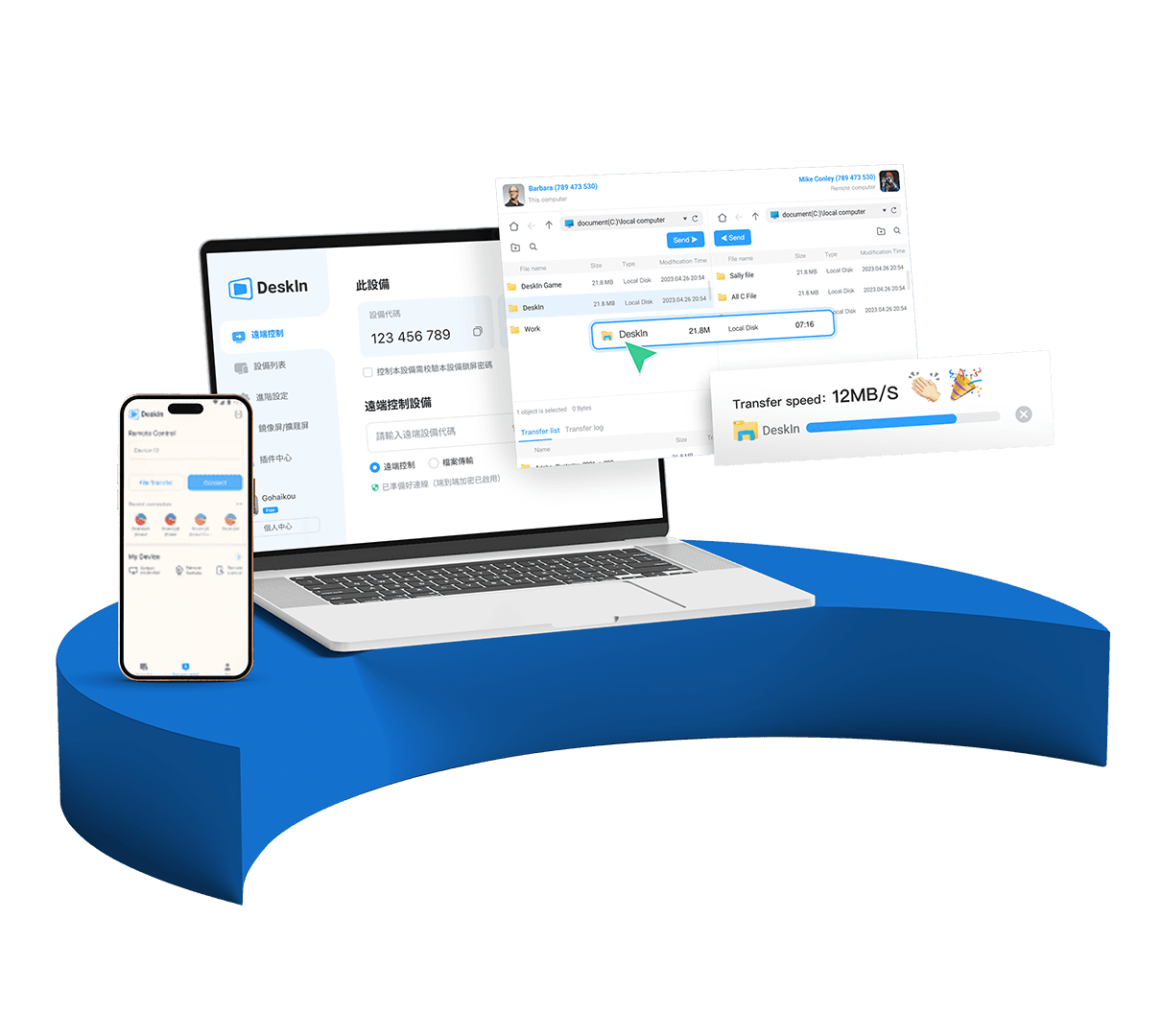
DeskIn is a powerful, easy-to-use platform optimized for smooth, real-time screen sharing with minimal lag. It supports full control, high resolutions, and crisp visuals, making it ideal for gaming. Here’s why DeskIn stands out:
- Simple Setup: Scan a QR code to connect your iPhone and PC instantly—no cables, no complex configurations.
- Low Latency: Achieve latency as low as 40ms with its ZeroSync® engine, ensuring your gameplay remains responsive.
- Full Input Support: Use your keyboard, mouse, or even game controllers for precise control.
- High-Resolution Support: Play in HD, 4K, or up to 60 FPS for stunning visuals.
- Cross-Platform Compatibility: Works seamlessly on Windows, macOS, and supporting mobile devices.
How to Play iOS Games on PC Using DeskIn
1. Download and install DeskIn on both your PC and iPhone.
2. Launch the app on both devices.
3. Scan the QR code displayed on your PC with your iPhone to establish a connection.
4. Your iPhone screen will mirror instantly—enter your game and enjoy full-screen, lag-free gameplay.
5. Connect your controller or keyboard for even better control.
This method provides a near-native experience, letting you play iOS titles on your PC effortlessly. Learn more about optimizing your gameplay with tips for game development or exploring the official game modding API.
Limitations of iOS Emulators
While emulators like Corellium or iPadian might seem appealing, they’re often not suitable for gaming:
- Performance Issues: Most emulators are slow, crash frequently, or lack proper graphics and input support.
- Limited Compatibility: Many modern games won’t run or will crash on these platforms.
- No Native Support: They often mimic the UI but don’t run actual iOS apps, making gameplay impossible.
For serious gaming, screen mirroring with tools like DeskIn is the superior choice.
Comparing Screen Mirroring and Emulators
| Feature | DeskIn | iOS Emulators |
|————————|——————————————-|—————————————-|
| Input Support | Keyboard, Mouse, Controller | Limited or none |
| Latency & Performance | Ultra-low (≤40ms), high FPS | High lag, inconsistent |
| Game Compatibility | All iOS games | Limited, often unstable |
| Setup Complexity | Easy, no jailbreak | Complex, developer-oriented |
| Visual Quality | Up to 4K, 60 FPS | Poor, often compressed |
Top Game Genres for Playing on PC
Many popular genres benefit from a bigger screen and full input controls:
- Action RPGs: Genshin Impact, Eternium—enjoy better combat and visuals.
- FPS & Shooters: Call of Duty Mobile, PUBG—precise aiming and quick reactions.
- Strategy & Sim: Clash of Clans, Mobile Legends—faster multitasking.
- Rhythm & Arcade: Cytus, Geometry Dash—better timing and control.
Optimizing your setup with a good monitor, controller, or keyboard can elevate your experience even further. Learn how to set up dual monitors for gaming for an immersive gaming environment.
Pro Tips for Lag-Free Full Screen Gameplay
- Use a 5GHz Wi-Fi network or a USB-C connection for minimal latency.
- Close background apps on your iPhone.
- Match your PC’s display settings to your iPhone’s resolution.
- Connect a controller or map hotkeys for faster input.
- Enable high refresh rate settings on your monitor.
These tweaks maximize responsiveness and visual clarity, giving you a seamless gaming experience.
Why DeskIn Is Ideal for iOS Gaming on PC
- No Jailbreak Required: Plug-and-play setup for instant connection.
- Built-in Voice Chat & Recording: Communicate with teammates and record gameplay.
- Supports 4K60FPS Streaming: Crisp visuals with minimal lag.
- Secure Connection: AES-256 encryption ensures your gameplay remains private.
- Cross-Platform Compatibility: Use across Windows, macOS, iOS, Android, and more.
Explore how to stream iOS games to Android or discover new ways to enhance your remote gaming setup.
Play iOS Games on PC Without Limits
Stop limiting yourself to small screens. With tools like DeskIn, enjoying iOS games on your PC is easier and better than ever. Whether for ranked matches, high scores, or just a better view of your game’s art, this setup transforms mobile gaming into a desktop experience.
Start today with DeskIn and unlock the full potential of your iPhone gaming library—full-screen, no lag, no restrictions.
Final Thoughts
Playing iOS games on your PC is no longer a distant dream. With reliable, low-latency screen mirroring solutions and simple setup, you can enjoy your favorite titles with full control and stunning visuals. Upgrade your gaming experience now—try DeskIn and see how effortless remote iOS gaming can be.