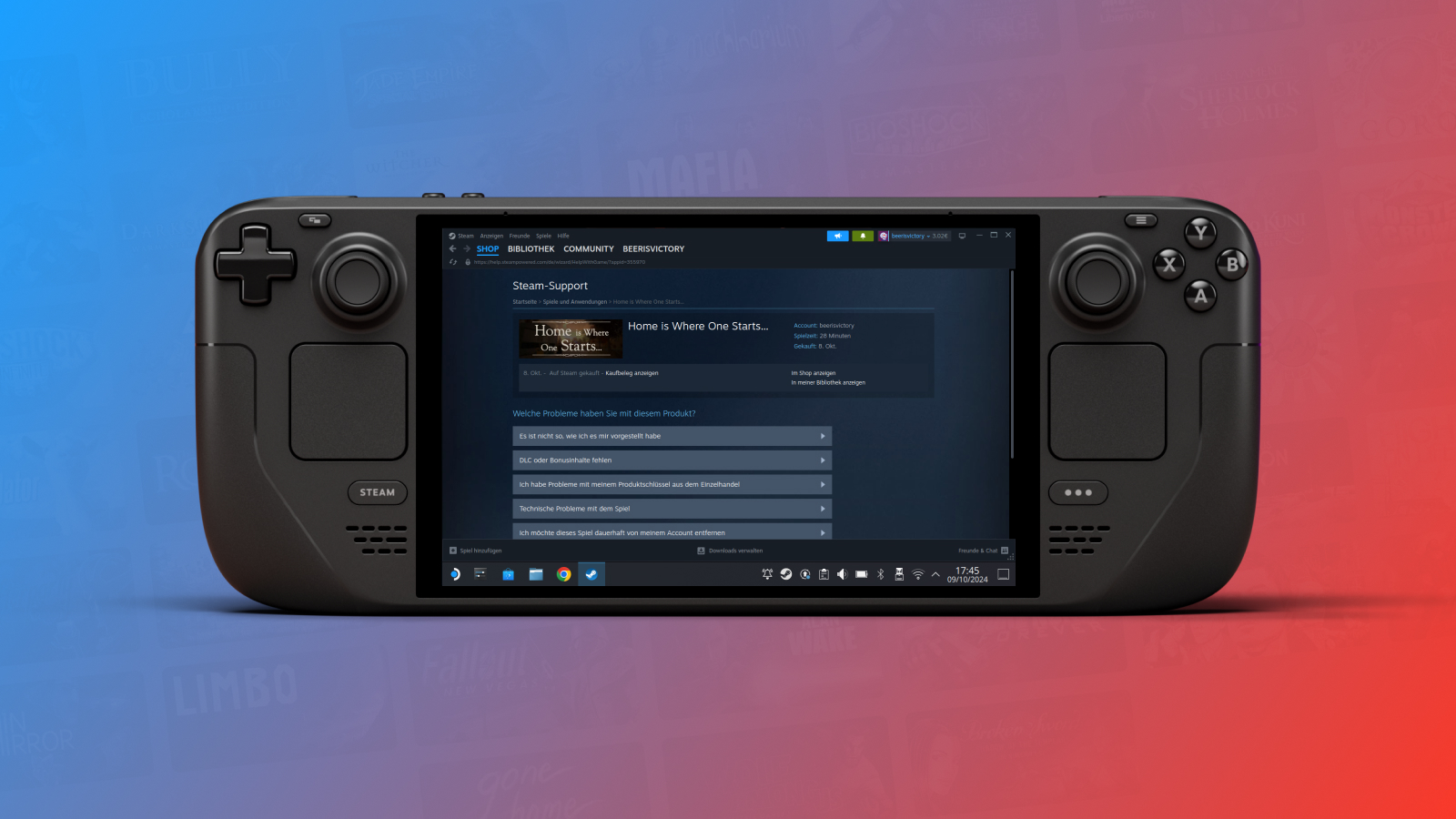
How to Permanently Remove Unwanted Games from Your Steam Library
Managing your Steam library can sometimes feel overwhelming, especially when it’s cluttered with games you no longer play or never intended to keep. Whether you’ve accidentally purchased titles, received unwanted bundles, or simply want a cleaner collection, knowing how to fully remove games ensures your library remains organized and tailored to your preferences. This guide walks you through the process of permanently deleting games from your Steam account, whether you’re using your Steam Deck in Desktop Mode or the official mobile app. Clearing out these titles not only declutters your library but also prevents them from appearing in tools like DeckFilter, which can sometimes still display hidden games.
Removing a Game from Your Steam Library in Desktop Mode on the Steam Deck
The Steam Deck’s Desktop Mode provides a full-fledged PC-like environment, giving you comprehensive control over your game library. This method ensures the game is permanently removed from your account, which is especially useful if you want to completely erase the game’s data and history.
- Switch to Desktop Mode
Begin by accessing Desktop Mode. Hold down the Steam button, navigate to “Power,” and select “Switch to Desktop.” Your device will restart into a desktop environment similar to a traditional PC.
- Launch Steam in Desktop Mode
Double-click the Steam icon on the desktop to open the client.
- Access Your Library
Click on the “Library” tab at the top of the window to view all your installed and uninstalled titles.
- Find and Select the Game
Scroll or search for the game you wish to delete from your account.
- Open the Support Options
Click on the game to go to its details page. Then, click the “Support” link at the top. If it’s not visible, click the ellipsis (“…”) next to the game’s name and choose “Support.”
- Request Permanent Removal
Scroll down the support page until you see the option labeled “I want to permanently remove this game from my account.” Click on it.
- Confirm Deletion
Steam will prompt you to verify your decision. Confirm the removal, and the game will be erased from your account forever.
Removing a Game through the Steam Mobile App
If you prefer managing your library on the go, the Steam mobile app allows you to delete titles directly from your smartphone. This process is straightforward and ensures the game is entirely removed from your account.
- Open the App and Log In
Launch the Steam app on your device and ensure you’re logged into your account.
- Navigate to Your Library
Tap the menu icon (three horizontal lines) located in the top-left corner, then select “Library.”
- Locate the Game
Scroll through or search for the game you want to remove.
- Access the Support Section
Tap on the game to open its details page. Then, locate and tap “Support” or “Game Info & Links” to expand support options.
- Select the Removal Option
Scroll down within the support menu until you find “I want to permanently remove this game from my account.” Tap on this option.
- Finalize the Removal
Confirm your choice when prompted. The game will then be permanently deleted from your account, preventing it from appearing again in your library or in tools like DeckFilter.
Why Permanently Remove Instead of Hiding?
While hiding games can temporarily clean up your library, they often still appear in third-party tools or in certain views within Steam, such as DeckFilter. Permanent removal guarantees that these titles are completely erased from your account, which is ideal for games you’re sure you will never play again. This approach keeps your library minimal, making navigation easier and your gaming experience more focused.
Personally, I prefer to keep my library lean by removing titles I no longer need. This helps streamline my Steam Deck experience, especially in Game Mode, where a clutter-free interface allows for quicker access to the games I truly want to play.
Final Thoughts
Whether you’re tidying up your library or trying to prevent unwanted titles from appearing in DeckFilter, the process of permanently deleting games from your Steam account is straightforward. Just ensure you’re ready to say goodbye to those titles, because once removed, they cannot be recovered. Managing your library effectively ensures a smoother gaming experience, allowing you to focus on titles you genuinely enjoy. For more insights on optimizing your gaming setup and discovering hidden features, check out discovering hidden secrets in game dev tycoon.
Additionally, if you want to customize your experience further, learning how to add mods to the non steam version of game dev tycoon can open up new possibilities for gameplay. Achieving perfect scores and maximizing your game’s potential is also easier with some expert tips, like mastering the art of achieving a perfect 11 10 rating in game dev tycoon, or boosting your creativity by understanding how to earn more direction points in your favorite simulation titles, such as maximizing creativity in game dev story.