How to Open and Run EXE Files on Your Android Device
Running Windows executable files (.exe) on an Android smartphone or tablet might seem impossible at first glance, but with the right tools and methods, it becomes feasible. Many users are interested in this capability to access older Windows games, legacy applications, or specific software not available on Android. While Android doesn’t natively support these files, various solutions allow you to unpack, emulate, or remotely access Windows environments to run .exe files smoothly.
This guide explores practical methods to open and execute .exe files on Android, including dedicated apps, emulators, and cloud computing options. Whether you want to run classic games like the 1993 version of Doom or need to access Windows applications remotely, these techniques can help you achieve your goal. Keep in mind that compatibility and performance may vary depending on your device and the specific .exe file you want to run.
—
Opening EXE Files with Inno Setup Extractor
One of the simplest ways to handle .exe files on Android is by using specialized extraction apps. Inno Setup Extractor is a practical choice because it allows you to open and extract the contents of many Windows setup files directly on your device. After downloading your .exe file, install Inno Setup Extractor from the Google Play Store. Use your preferred file browser to locate the .exe file, then open it with the app. The extractor will unpack the file, allowing you to access its components and potentially run certain parts if compatible.
This method is especially useful for files that contain scripts or installers you want to analyze or manually execute. Remember that not all .exe files will run on Android even after extraction, but it’s an effective starting point for many lightweight or less complex programs.
Running EXE Files Using DOS Emulators
For older software designed for MS-DOS or early Windows environments, DOS emulators provide a reliable solution. DOSBox, a popular emulator, allows you to run legacy programs by mimicking the DOS operating system. Android users can leverage apps like AFreeBox, available on the Google Play Store, to emulate DOS and run compatible .exe files.
To use DOSBox, place your .exe files in a dedicated folder on your device. Launch the emulator, then navigate to that folder using commands such as `cdfoldername`. Once inside, type the name of the executable, and if compatible, the program will start. This method is ideal for running older games or utilities that do not require complex Windows features.
Using Wine for Windows Compatibility Layer
Wine is a well-known compatibility layer that enables Windows applications to run on other operating systems. While primarily used on Linux, Wine also has Android versions that can be sideloaded onto devices. Downloading the APK from the official site is necessary because the app isn’t available in the Google Play Store.
Ensure you select the correct version for your device’s processor architecture (ARM or x86). After installation, you can open the app, then load your .exe files directly. Wine translates Windows API calls into Android-compatible ones, allowing many older or simpler Windows applications to operate.
You can learn more about sideloading apps like Wine through dedicated guides on installing APK files manually.
Emulating Windows with Winlator
Winlator offers a more comprehensive solution by emulating a Windows environment directly on Android. It bundles third-party software into a single APK, which you can download from the official website. Once installed, Winlator enables you to run many Windows programs, including .exe files, on your Android device.
While not all applications are supported, many lightweight and older Windows apps work well within Winlator. This emulator is particularly useful for users who want a more integrated Windows experience without relying on remote servers.
Exploring Cloud Computing Options
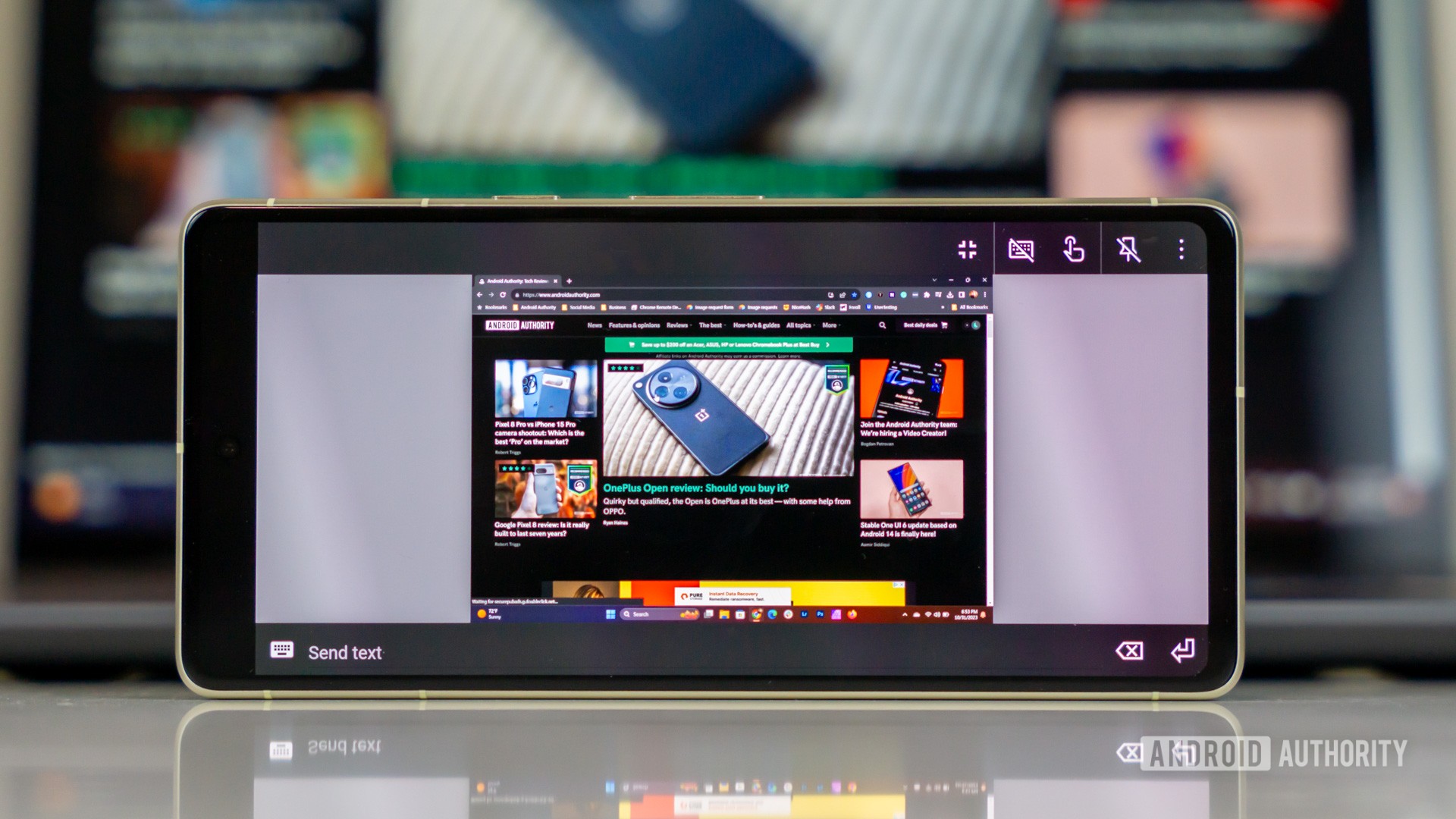
If local solutions prove unreliable or incompatible, cloud computing services provide a powerful alternative. Platforms like Shadow PC offer a full Windows desktop accessible from Android devices via remote desktop apps. These cloud-based Windows environments can run any .exe file just as if you were using a PC.
Shadow PC plans start at around $29.99 per month, providing robust hardware specifications suitable for gaming, multimedia editing, and general Windows application use. For more budget-friendly options, the Pro plans begin at $10 monthly, offering basic Windows environments capable of handling everyday tasks.
Alternatively, remote desktop applications like Chrome Remote Desktop allow you to connect to a dedicated Windows PC or server, giving you full control over your Windows environment from your Android device. This approach is more dependent on having an existing Windows machine but offers flexibility and compatibility.
—
FAQs
- Can I run .exe files directly on Android?
Android does not natively support running Windows executable files. However, with the right tools like emulators or remote access, it’s possible to use .exe files indirectly.
- Is it possible to install Windows OS on an Android device?
Technically, yes, but it’s highly complex and generally not practical. Android hardware and drivers are optimized for Android, so installing Windows involves significant technical challenges and potential compatibility issues.
- Will all Android apps open any .exe?
No. Most Android apps that attempt to open .exe files can only run older or simpler programs. High-end or complex applications, especially modern games or professional software, are unlikely to work.
- Why can’t Android natively run .exe files?
Because .exe files are designed for Windows architecture, which is incompatible with Android’s Linux-based system. Emulators or compatibility layers are necessary for any cross-platform execution.
- Are there better ways to play Windows games on Android?
Yes. Cloud gaming services like NVIDIA GeForce Now and Xbox Cloud Gaming enable you to stream Windows games directly to your Android device without running the game locally.
For more detailed insights into managing game development and software deployment, you can explore resources on building a successful video game studio from scratch, or learn about assigning developer permissions in Roblox. Additionally, if you’re interested in modifying games or enhancing gameplay, a comprehensive guide to modding GDT CheatMod can be invaluable.