


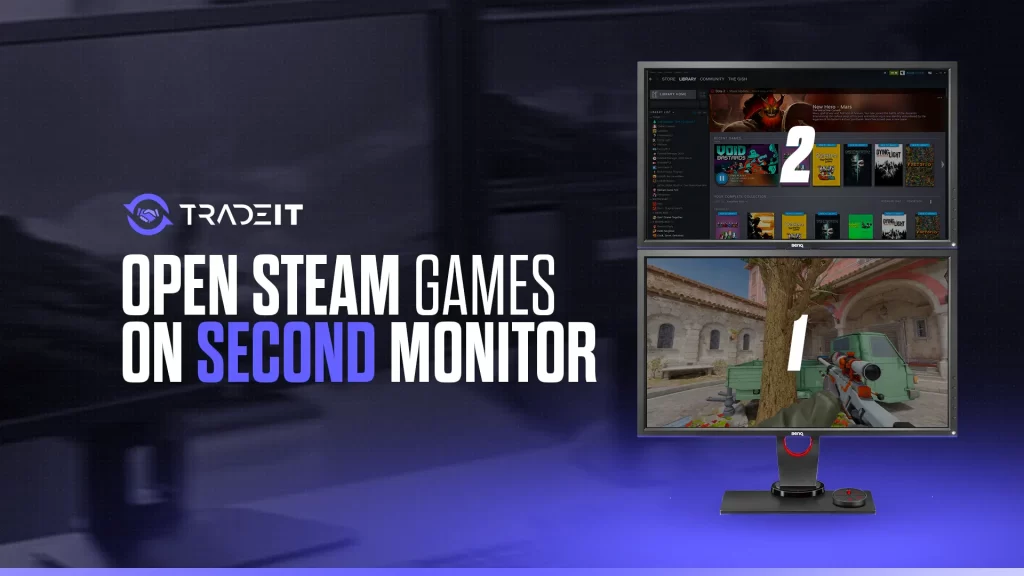
Setting up a multi-monitor gaming environment can significantly enhance your gaming experience, providing expansive visuals and improved multitasking capabilities. If you’re wondering how to open Steam games on a secondary monitor, you’re in the right place. This guide walks through the essential steps to configure your setup effectively, ensuring your games launch exactly where you want them—on your preferred display—without hassle. Whether you’re aiming for a more immersive experience or need your game on a specific screen for streaming or multitasking, these methods will help you achieve the perfect dual-monitor gaming environment.
—
Key Takeaways
- Confirm your computer’s hardware supports dual monitors and properly adjust Windows display settings to designate primary and secondary screens, aligning resolutions for visual consistency.
- Use Steam’s built-in options or launch parameters such as ‘Windowed Mode’, ‘Big Picture Mode’, or custom commands like ‘–adapter X’ to ensure your games launch on the desired monitor.
- For more advanced setup and management, third-party tools such as DisplayFusion can help you customize and optimize your multi-monitor experience, matching resolution, refresh rate, and brightness across screens.
—
Setting Up Multiple Monitors
Properly configuring your dual monitor setup is crucial before attempting to open Steam games on a specific display. This involves both hardware and software adjustments to ensure everything functions smoothly.
Hardware Connection
Start by verifying that your PC can support two monitors. Check the specifications of your graphics card:
- Does your GPU have enough display outputs (HDMI, DisplayPort, DVI)?
- Are the ports compatible with your monitors’ inputs?
- Do you have the necessary cables for connection?
Ensuring your hardware supports dual displays is the first step towards seamless multi-monitor gaming. Remember, setting appropriate resolutions in your games, such as CS2 or DOTA 2, can prevent visual discomfort and improve performance. Proper setup not only enhances visual quality but can also boost frame rates and overall responsiveness.
Display Settings
Once your hardware is connected, configure your display settings in Windows:
- Navigate to the Display section in Windows Settings.
- Choose whether to duplicate, extend, or use only one display.
- Identify each monitor by their numbered boxes to set the correct primary display.
- To prioritize a specific monitor for gaming, select it and click “Make this my main display.”
If your games open on the wrong monitor, you can temporarily disable the incorrect display in Windows settings, launch your game, and then re-enable it once your game appears on the correct screen. This method helps troubleshoot and control where your games appear.
—
Launching Steam Games on Your Secondary Monitor
After setup, the next step is to configure Steam games to launch on your preferred display. Several methods are available, from in-game settings to launch options and third-party tools.
Using Windowed Mode
Running games in windowed mode offers flexibility. To do this:
- Launch the game through Steam.
- Access the game’s settings menu.
- Select ‘Windowed’ or ‘Borderless Window’ mode.
- Drag the game window to your secondary monitor.
This approach provides a simple way to specify the display, especially when combined with Windows’ display management. For a more immersive experience, Steam’s Big Picture Mode can be customized to launch on a specific monitor by setting it as the primary display in Windows.
Additionally, setting launch parameters such as `-monitor 1` or `-adapter 2` can force games to start on a particular screen. For example, in Steam’s launch options, you can add commands like `-adapter 2` to specify the second monitor, provided you identify the correct monitor number.
Big Picture Mode
Steam’s Big Picture Mode is designed to optimize gaming on large screens and controllers. You can configure it to launch on your secondary monitor by making that display your primary in Windows settings. Once configured, Big Picture Mode can be quickly shifted between screens using keyboard shortcuts like Windows+Shift+Left or Right arrow, offering quick flexibility during gaming sessions.
Launch Options
Steam allows custom commands to control where a game appears at launch. The `-adapter X` parameter, where ‘X’ is the monitor number, can be added to the game’s launch options:
“`plaintext
-adapter 2
“`
Ensure you know the correct monitor number by testing display arrangements, as incorrect settings may cause games to open on unintended screens. Proper identification of monitor IDs is essential for this method to work effectively.
—
Utilizing Multi-Monitor Tools
For more precision and control, third-party utilities such as DisplayFusion are invaluable. These tools extend Windows’ native capabilities and provide features like multi-monitor taskbars, hotkeys, and monitor splitting.
DisplayFusion’s monitor splitting feature allows you to divide a single monitor into multiple virtual screens, which can be particularly useful for multitasking or creating custom gaming areas. You can also move games running in windowed mode between screens or set them to borderless mode to mimic fullscreen behavior. These enhancements make managing multiple displays more straightforward and can significantly improve your overall gaming setup.
—
Summary
A dual monitor setup opens up a world of possibilities for gamers, offering an immersive environment and improved multitasking. By ensuring your hardware is compatible, correctly configuring display settings, and utilizing tools like Steam’s launch options or third-party management software, you can effortlessly open your Steam games on your preferred monitor. Remember, the key lies in fine-tuning your setup for seamless operation and visual harmony. Experiment with different configurations to find what works best for your gaming style, and enjoy the enhanced experience.
—
Frequently Asked Questions
How do I set a game to open on my secondary monitor? You can achieve this by adjusting the game’s display settings to windowed mode and dragging it to your desired screen. Alternatively, using Steam’s Big Picture mode or specific launch commands can streamline this process. For detailed guidance on managing permissions, check out how to assign developer permissions in your roblox game.
Why is matching monitor resolutions important? Ensuring both monitors share similar resolution settings helps create a cohesive and immersive visual experience, preventing distractions caused by resolution mismatches.
What is Big Picture mode on Steam? Big Picture Mode is a console-inspired interface designed to enhance gaming on larger displays. Setting your secondary monitor as the main display in Windows allows you to switch easily between screens during gameplay.
How can I optimize game settings for a dual monitor setup? Adjusting resolution, refresh rate, and brightness on both monitors ensures consistent visuals and performance. Matching these settings minimizes visual discrepancies, creating a seamless gaming environment.
Can I use third-party tools for my dual monitor setup? Absolutely. Utilities like DisplayFusion provide advanced features that streamline multi-monitor management, including taskbars, hotkeys, and window positioning. They make complex setups much easier to handle.
For more in-depth tips on multi-monitor management, explore building a successful video game development studio from the ground up, which offers insights into creating optimized gaming environments and workflows.
—
William Westerlund
William brings over seven years of experience writing for gaming blogs, with extensive hands-on experience in titles like CS:GO and CS2. His expertise in high-level gameplay and skin trading offers unique perspectives to help gamers optimize their setups and gameplay.