


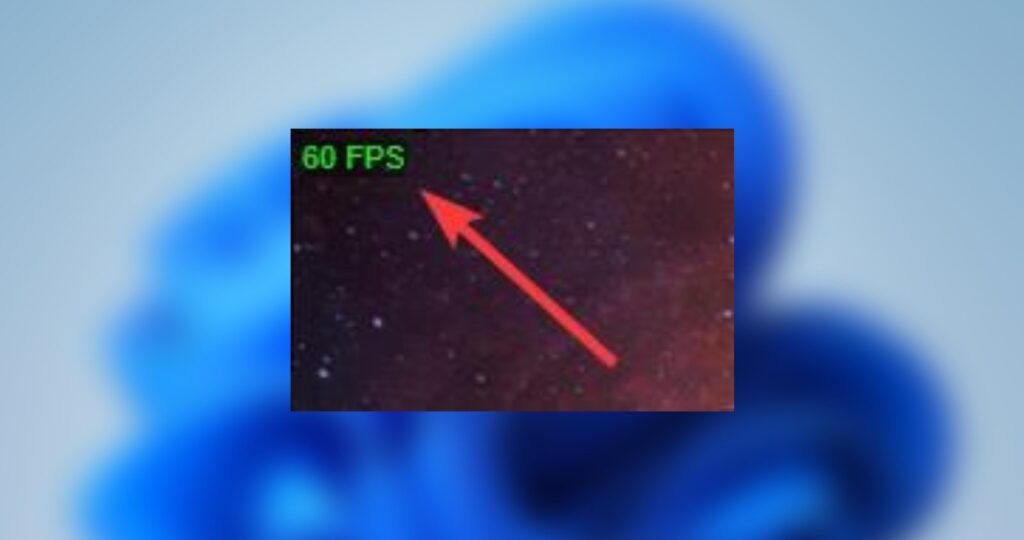
Monitoring your game’s frame rate (FPS) is essential for understanding how well it runs on your system and for optimizing performance. Fortunately, Steam offers a straightforward, built-in feature that allows you to display an FPS counter in any game without needing third-party tools. This guide will walk you through the simple steps to enable and customize the FPS display, helping you make informed decisions about your graphics settings and ensure a smooth gaming experience.
Once you grasp how to activate the FPS counter within Steam, you can also explore techniques for enhancing your gaming interface by tailoring visuals for smaller screens and other devices. For developers, understanding how to implement such features is vital for creating immersive experiences, especially on limited display real estate. To deepen your knowledge, you might find it helpful to review resources on crafting engaging interfaces for compact screens or learn about modding to customize your gaming environment further. Additionally, knowing how to manage game files effectively, including removing saved game data, can streamline your customization process and troubleshoot issues more efficiently.
Below, we detail the steps to turn on the FPS counter and adjust its appearance for optimal visibility.
Enable the FPS Counter in Steam
Begin by launching the Steam client application. Click the Windows icon on your taskbar, or open the Start menu and search for Steam. Select the top result to launch the program.
Once Steam is open, click on Steam in the upper-left corner and select Settings from the dropdown menu. This action opens the Steam settings window.
Within this window, navigate to the In-Game tab located on the sidebar. Here, locate the option labeled In-game FPS counter. Click on the dropdown menu next to this setting to choose the position where the FPS will appear during gameplay. Common options include top-left, top-right, bottom-left, and bottom-right. For instance, selecting Top-Left will display the frame rate in the upper-left corner of your screen.
After selecting your preferred position, simply click OK or close the settings window to apply the changes. The FPS counter will now be visible in all your Steam-supported games.
Customize the FPS Counter’s Appearance
The default FPS display is designed to be unobtrusive, allowing you to monitor performance without distraction. However, if you find the numbers difficult to see, you can enhance their visibility through customization.
In the same In-Game tab of the Steam settings, locate the toggle labeled In-game FPS counter high contrast color. Turn this option on to switch to a high-contrast color scheme, making the frame rate numbers more distinct and easier to read during gameplay.
Adjusting this setting can be particularly helpful if your game has a busy or colorful background that makes standard FPS text hard to distinguish.
And that’s all it takes! Displaying the frame rate in any Steam game is quick and straightforward, providing valuable real-time feedback on your gaming performance. Whether you’re troubleshooting performance issues or just curious about your system’s capabilities, enabling the FPS counter is a useful step. For more advanced customization or to optimize your experience further, consider exploring guides on improving game interfaces for smaller screens or managing game files efficiently, such as how to remove saved game files in game dev tycoon. This knowledge can help you tailor your gaming environment to suit your needs perfectly.