


Creating quick access points for your favorite Steam titles can significantly streamline your gaming experience. Whether you prefer launching directly from your desktop or pinning games to your taskbar for easy access, setting up shortcuts is straightforward. This guide walks you through the step-by-step process to efficiently create shortcuts for Steam games, enhancing your gaming setup. Additionally, understanding the broader aspects of app development and ecosystem creation can be beneficial, as explored in resources on building profitable mobile platforms and managing development costs.
Many users find it advantageous to have their favorite games readily accessible. By adding shortcuts to the desktop or pinning them to the taskbar, you can jump straight into gameplay without navigating through the Steam client each time. The following instructions will help you achieve this with minimal effort.
How to Pin a Steam Game to Your Desktop
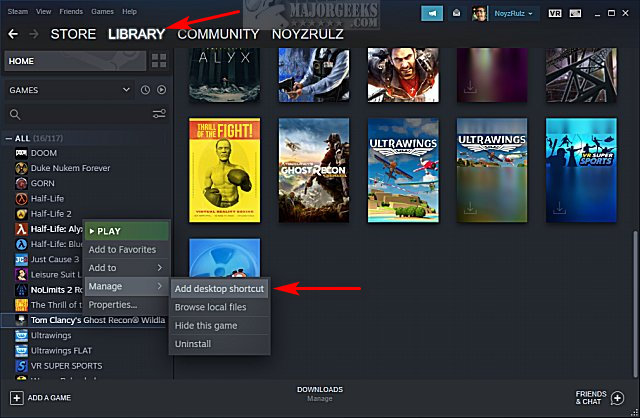
Creating a desktop shortcut for a Steam game is a quick process that allows you to launch your favorite titles without opening Steam first. To do this:
- Open your Steam client and navigate to the Library tab where all your games are listed.
- Locate the game you wish to create a shortcut for.
- Right-click on the game’s title, then hover over the Manage option in the context menu.
- Select Add desktop shortcut. This will instantly place a shortcut icon on your desktop.
Once the shortcut appears, verify its presence by checking your desktop. You can rename the shortcut if desired, making it easier to identify later.
How to Pin a Steam Game to Your Taskbar
Pinning a game to the taskbar provides quick one-click access during your gaming sessions. To do this:
- Find the game icon in your Steam Library.
- Right-click on the game, hover over Manage, and select Browse local files.
- File Explorer will open directly to the game’s installation folder.
- Locate the main executable file (usually with a `.exe` extension).
- Right-click on this file and select Pin to taskbar.
This process creates a convenient shortcut right on your taskbar, allowing you to launch your game directly without additional steps.
Additional Tips for Managing Steam Game Shortcuts
- To remove a shortcut, simply delete it from your desktop or unpin it from the taskbar.
- For better organization, consider creating folders on your desktop to categorize your shortcuts.
- If you want to customize the shortcut icon, right-click on the shortcut, select Properties, click on the Change Icon button, and choose your preferred icon from the available options or browse for a custom one.
For more advanced management, some users explore tools that allow batch creation of shortcuts or automation of this process.
Related Guides and Resources
- To improve your overall experience with Steam, learn how to disable popups and notifications here.
- If you’re interested in developing your own gaming applications or ecosystems, understanding the costs involved can be helpful. For insights on the expenses related to mobile game development, visit this resource.
- For developers aiming to build robust and profitable platforms, exploring strategies in digital ecosystem creation is essential. Discover more about how to develop effective mobile environments by reviewing industry guides.
By following these simple steps, you can significantly reduce the time it takes to start your favorite games, making your gaming sessions smoother and more enjoyable. Properly managing shortcuts not only saves time but also helps keep your desktop organized, ensuring quick access whenever you want to dive into the action.
Note: Always keep your game files and shortcuts updated to prevent any launching issues. If you encounter problems, verifying the game files or reinstalling the game might be necessary.
—
For further reading on optimizing your gaming setup and exploring the technical side of app development, visit the official resources and guides provided by top industry experts.