How to Change Your Twitch Name and Color in 2026
Changing your Twitch username and customizing your chat appearance can significantly enhance your streaming identity and viewer engagement. Whether you’re rebranding, correcting a typo, or just want a fresh look, Twitch now makes it easier than ever to update your display name and name color. This guide walks you through the entire process, including how to modify your username, display name, and chat color, ensuring your profile stays fresh and personalized.
Even better, if you’re interested in optimizing your gaming setup or managing your Twitch presence more effectively, you might want to explore resources on ensuring your Steam game installations are properly recognized or creating shortcuts for your favorite games. For example, learn about how to make Steam recognize your existing game files. Additionally, customizing your Twitch experience can be complemented by understanding how to create desktop and taskbar shortcuts for your Steam games. And if you’re into modding Android games, mastering game modifications can be a fun way to enhance your gaming experience—check out this complete guide on Android game modifications.
Changing Your Twitch Username and Display Name
Twitch allows users to update their usernames and display names, but with specific limitations to prevent frequent changes. Your username, which is part of your channel URL, can only be changed once every 60 days. This restriction is in place to maintain consistency and prevent abuse. Conversely, your display name—what viewers see during streams and in chat—can be modified at any time without restrictions.
How to Change Your Twitch Username
If you decide it’s time for a new username, follow these steps:
- Log into your Twitch account using your current credentials.
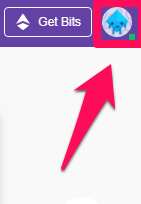
- Click on your profile picture located in the top right corner of the screen.
- From the dropdown menu, select Settings.
- In your profile settings, scroll down to find the Username and Display Name sections.
- If you’ve waited at least two months since your last username change, you will see an Edit (Pencil) icon next to your username. Click it.
- Enter your preferred new username. If it’s available, a green checkmark will appear. Confirm by clicking Update.
- To finalize the change, you will be prompted to verify your identity by entering your Twitch password.
How to Change Your Display Name
Changing your display name is equally simple:
- Follow the same initial steps to access your profile settings.
- Locate the Display Name field, just below your username.
- Enter your desired display name, keeping in mind you can use capital letters or special characters if you wish.
- Save your changes by clicking Save.
What Are the Effects of Changing Your Username?
When you update your username, Twitch automatically updates your channel URL to reflect the new name. For example, if your URL was `twitch.tv/OldName`, it will now change to `twitch.tv/NewName`. Keep in mind, however, that the old URL will not redirect to your new one, meaning anyone visiting the old link will see a 404 error unless you set up redirection through other means. Your profile picture, followers, and subscription details remain unaffected, ensuring your channel’s core content stays intact.
Reverting to Your Old Username
If you decide to revert to your previous username, Twitch temporarily holds onto your old name for six months after the change. During this period, no one else can claim that username. After six months, Twitch may free up the old name for new users to register, so patience is key if you wish to reclaim it.
Changing Your Twitch Name Color
Customizing your chat username color enhances your visibility during live streams and helps your messages stand out. Twitch allows users to change their chat color quickly and easily, making interactions more personalized and vibrant.
Changing Name Color on Desktop
To modify your username color in chat:
- Join a live stream chat.
- Type the command `/color ` in the chat message box and send it. For example, `/color Blue` will set your username to blue.
- If you’re uncertain about available colors, type `/color` alone to see a list of options. Note that some colors, like black, are not available.
- Be aware that it may take a few seconds for the color change to appear in chat.
Changing Name Color on Mobile
Currently, changing your username color directly within the Twitch mobile app isn’t supported. However, you can access Twitch through a mobile web browser and log into the desktop version to change your chat color using the same commands described above.
While changing your username itself on mobile isn’t possible, you can still personalize your chat experience by adjusting your name color with commands while chatting in the mobile browser.
Final Thoughts
Mastering profile customization on Twitch allows you to craft a unique identity and enhance viewer engagement. Remember, changing your display name and chat color is straightforward and can be done anytime, but reverting your username to an old one is only feasible after a waiting period. Make sure to choose your username wisely before changing it, as recovering an old username isn’t guaranteed.
For comprehensive control over your gaming and streaming setup, consider exploring resources like how to make Steam recognize your existing game files, or learn how to create shortcuts for your games. And if you’re interested in customizing Android games through modifications, this detailed guide on game modding can help you get started.