How to Change the Default Installation Location of Steam Games
Adjusting where Steam installs your games can help keep your system organized and free up space on your primary drive. If Steam has been set to install games on your desktop or another location by mistake, or if you simply want to change the default folder, this guide offers clear steps to do so without needing to reinstall the entire client. Properly managing your Steam library locations can also be part of a broader strategy for optimizing your game storage, including unlocking additional office expansions and staffing in your simulation games.
Steam’s default installation directory is typically `C:Program FilesSteam`, but users often change it to other drives or folders for convenience. If you want to revert the installation path or set a new one, follow these instructions carefully. Additionally, if you’re interested in understanding how some of the top game studios are shaping the future of gaming, exploring industry trends such as the growth of Web3 game development can be insightful, especially in relation to managing digital assets and game data.
How to Change Steam’s Installation Directory
If Steam was installed with the default settings, but afterward, you moved the game files or changed folder locations, the client might still think it’s installed in its original directory. To correct this, you need to update Steam’s library folders through its settings.
Changing the Default Install Location During Setup
When installing Steam initially, you are prompted to choose an installation directory. If you want to change this in future installations or modify existing ones:
- Launch the Steam installer.
- During the setup process, you’ll see an option to select the install directory.
- Choose your preferred folder or drive.
- Complete the installation.
Managing Library Folders in Steam Settings
For existing installations, managing your library folders is straightforward:
1. Open Steam and go to Steam > Settings (or Preferences on Mac).
2. Navigate to the Downloads tab.
3. Click on STEAM LIBRARY FOLDERS.
4. Here, you will see a list of current library locations. To add a new folder:
- Click Add Library Folder.
- Select or create the folder where you want to store future game installs.
- Set this as the default if needed.
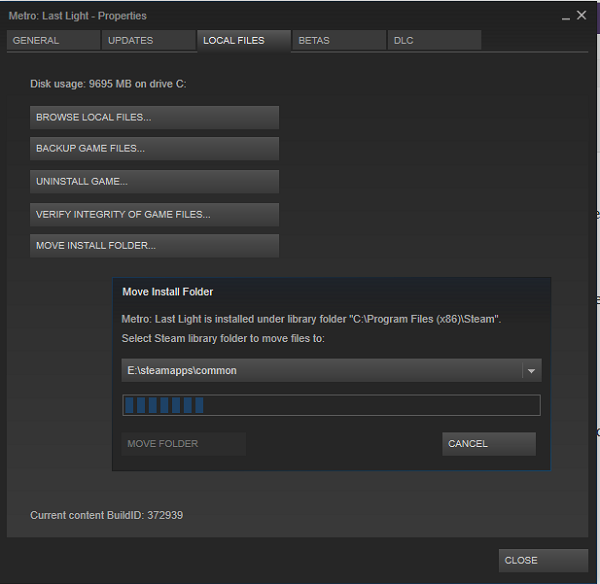
5. To move existing games to a new location, right-click a game in your library, select Properties, then go to Local Files and choose Move Install Folder. This process helps transfer game files without re-downloading.
For more advanced management, including unlocking additional office expansions and staffing in game development simulations, understanding how to organize your assets and storage is crucial. Unlocking office expansions and staffing in game development simulations can help optimize your virtual workflow.
Moving Existing Games to a New Folder
If you’ve already installed games and want to relocate them:
- Use the Move Install Folder feature within Steam.
- Navigate to your game library, right-click on the game, select Properties, then Local Files, and click Move Install Folder.
- Choose your preferred library location, and Steam will handle the transfer.
This process avoids re-downloading large files and helps keep your storage organized. Ensuring your game library is efficiently managed can also be part of a broader strategy for optimizing your system, akin to exploring the best practices in game studios’ development workflows.
Troubleshooting Common Issues
Sometimes, Steam may continue to install or create files in an unintended location due to residual settings or shortcuts. Double-check that your library folders are correctly configured, and restart Steam after making changes. If problems persist, consider reinstalling Steam and selecting the correct installation directory at the start. Remember, managing your game storage efficiently can also help in optimizing performance and avoiding clutter, which is essential for both casual gamers and professionals alike.
For further tips on optimizing your gaming environment, including how to perform comprehensive system cleanups or utilize cheat modes to unlock hidden features in games like Game Dev Tycoon, visit this guide. Proper management of your game files and settings can enhance your overall experience and streamline your workflow.
—
Optimizing your game storage and understanding how to manage your libraries can significantly improve your gaming experience. Whether you’re shifting game files or exploring industry trends, staying organized is key to enjoying your digital adventures to the fullest.