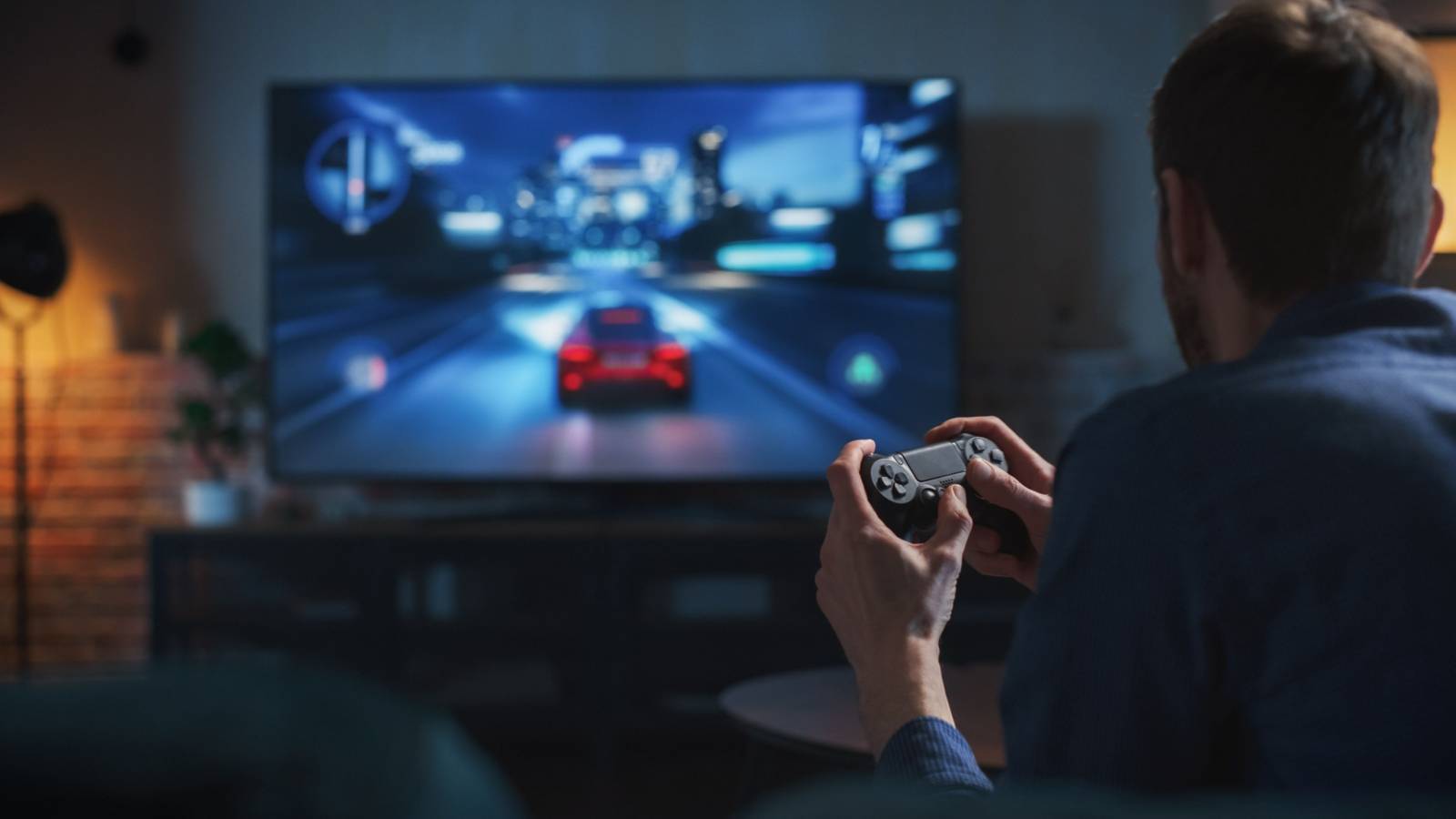
Effortless Methods to Play PC Games on Your TV
Streaming your favorite PC titles directly onto your television allows for a more immersive gaming experience, whether you’re relaxing on the couch or hosting friends. With a variety of options available, you can choose the method that best suits your setup and preferences—ranging from wired connections to wireless solutions. This guide explores the most effective ways to stream your computer games to your TV, highlighting their benefits and setup processes.
While wireless streaming offers convenience without cluttering your space, a straightforward HDMI cable remains a reliable fallback when wireless options aren’t feasible. Each method has its unique advantages, and understanding them can help you optimize your gaming setup.
1. Stream from Your PC Using Steam Remote Play
One of the most popular ways to enjoy PC games on your TV is through Steam’s Remote Play feature, which allows you to cast your entire Steam library wirelessly. This method works seamlessly if you have compatible hardware and a stable network connection.
To get started, launch Steam on your PC and navigate to Steam > Settings. Under the Remote Play section, enable the feature by toggling Enable Remote Play. Once activated, you can connect compatible devices such as Apple TV (version 11.0+), NVIDIA Shield TV, or Android TV (version 5.0+). Simply download the Steam Link app on these devices to stream your games directly to your TV.
If you don’t own these devices, an affordable alternative is a Raspberry Pi, which can be configured as a dedicated Steam Link box for under $50—though note that official Steam Link hardware has been discontinued. Many streaming devices like Amazon Fire TV, Chromecast, or Apple TV also support the Steam Link app, making setup straightforward.
To establish the connection, on your PC, go to Steam > Settings > Remote Play and click Pair Steam Link. On your streaming device, open Settings > Computer and select your gaming PC. Use the Rescan option if your device doesn’t recognize your PC immediately. Once paired, tap Start Playing, enter the PIN displayed on your TV into Steam on your PC, and enjoy your games on the big screen.
2. Use Miracast and Wireless HDMI for Seamless Streaming
Wireless HDMI systems, which transmit audio and video signals without physical cables, are excellent for low-latency game streaming. The most common standard today is Miracast, supported by many modern Windows PCs and smart TVs.
To use Miracast, ensure your PC runs Windows 10 or later, and verify your TV’s compatibility. If your TV doesn’t support Miracast natively, a Miracast dongle or Microsoft Wireless Display Adapter (~$400) can bridge the gap. Compatibility with Linux or macOS is limited, so this method is primarily suited for Windows users.
Here’s how to connect via Miracast:
- Confirm both your PC and TV are connected to the same Wi-Fi network.
- Plug in the Miracast device if needed.
- On Windows, open the Action Center by clicking the chat bubble icon on the taskbar.
- Click Connect and select your TV from the list.
- If it doesn’t appear, restart both devices and ensure they support Miracast.
While Miracast provides minimal latency, which is crucial for gaming, it can be more expensive depending on your hardware. It offers a reliable, lag-free experience when properly set up.
3. Cast Your Screen via Chromecast
Chromecast offers a versatile way to mirror your PC screen, including games, directly onto your TV. This method works well for casual gaming or streaming non-competitive titles, as it may introduce noticeable lag.
To cast with Chromecast:
- Make sure your PC and Chromecast device are connected to the same Wi-Fi network.
- Launch Google Chrome and sign in with the same Google account linked to your Chromecast.
- Load your game or desktop and open the Chrome menu (three dots in the upper right).
- Select Cast, then choose Cast desktop from the Sources dropdown.
- Pick your Chromecast device from the list to start mirroring.
Be aware that gameplay can be affected by lag, especially with fast-paced or timing-sensitive games. For smoother performance, close unnecessary applications like Chrome itself to free up RAM and CPU resources.
4. Cast Using a Fire TV Stick
The Fire TV Stick provides an easy, reliable method for streaming PC content to your TV, compatible with many gaming setups. It supports the Steam Link app and also allows direct screen mirroring from your PC.
To set up mirroring with Fire TV Stick:
- Ensure your Fire TV and PC are connected to the same Wi-Fi network.
- On the Fire TV remote, hold Home and select Mirroring.
- On your Windows PC, open the Action Center by clicking the icon on the taskbar.
- Click Connect and select your Fire TV device.
- Once connected, your PC screen will be mirrored on your TV, allowing you to launch and play games.
Optimizing your Wi-Fi settings, such as switching to a 5GHz network and enabling game mode on your TV, can significantly reduce latency and improve streaming quality.
—
Playing PC games on your television combines the immersive visuals of your large screen with the comfort of your couch. Whether you prefer wired connections or wireless streaming, setting up your gaming environment with these methods ensures you get the best experience possible. For advanced customization or modding, you might also explore adding mods to the non Steam version of Game Dev Tycoon. Additionally, for those interested in unlocking hidden features in simulation games, check out this guide on discovering secrets in game dev tycoon. For a more in-depth look at unlocking in-game content, exploring this resource on unlocking office expansions and staffing can be valuable.