


Moving your Steam games to another storage device can significantly improve your gaming experience, especially if your primary drive is running out of space or is slower. Whether you’re upgrading to a larger SSD, reorganizing your storage, or simply want to keep your game files better managed, this comprehensive tutorial will walk you through several effective methods to transfer your Steam library without the need to redownload games. By understanding these options, you can optimize your system’s performance and free up valuable space on your main drive.
How to Transfer Steam Games to a Different Drive in Windows 11/10
Steam offers built-in features that make relocating your game files straightforward. Additionally, there are third-party tools and backup options that facilitate bulk transfers or manage multiple libraries efficiently. Before starting, ensure your target drive has sufficient free space to accommodate your existing game library.
Moving Steam Games Using the Built-In Function
Steam’s native functionality simplifies moving individual games between libraries. Typically, game files are stored in `C:Program FilesSteamsteamappscommon`. Steam also supports multiple download folders, giving you flexibility in managing storage locations.
To move a game with the built-in feature:
- Launch Steam and navigate to Settings > Downloads > Steam Library Folders.
- Click Add Library Folder and select or create a new folder on your preferred drive, such as a folder named SteamGames.
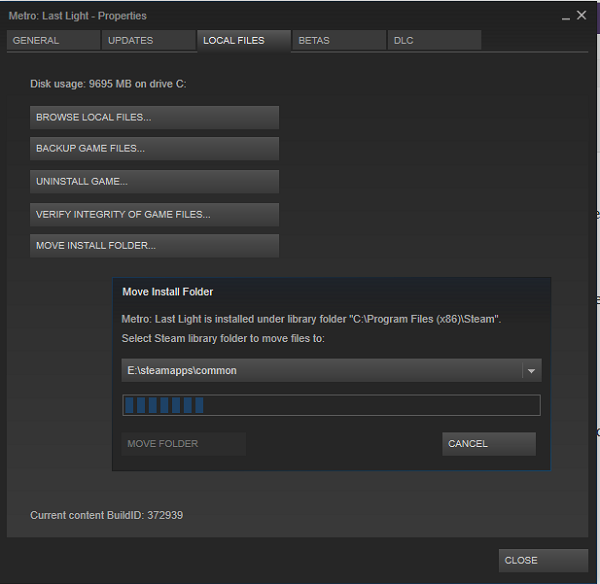
- Head to your game library, right-click on the game you wish to transfer, and select Properties.
- Switch to the Local Files tab.
- Click on Move Install Folder.
- Choose the new library folder you added earlier and confirm the move.
Steam will then transfer the game files to the new location. The process’s duration depends on the size of the game being moved. After completion, Steam maintains the folder structure similar to `Steamsteamappscommon` in the new directory, ensuring consistency.
Using a Third-Party Tool for Batch Moving: Steam Library Manager
For managing multiple games simultaneously, the Steam Library Manager (SLM) offers a powerful and user-friendly interface. This tool enables you to copy, move, or back up your games across various libraries with minimal effort.
Features include:
- Drag-and-drop game transfers between libraries.
- Display of available storage space on each drive.
- Batch processing via a task manager.
- Real-time progress updates.
- Integration with Steam to launch games directly from SLM.
Given its recent updates, SLM provides a reliable solution for bulk management, making it easier to reorganize your game collection without the hassle of manual transfers. After moving games, remember to restart Steam to recognize the changes.
Backing Up and Restoring Games to Relocate Multiple Titles
If you prefer not to use third-party tools, Steam’s backup and restore feature is an effective alternative for moving large collections of games. Although slightly more involved, it ensures all your data remains intact.
Follow these steps:
- Identify your target drive or partition with ample space.
- Add this location as an additional library via Steam > Settings > Downloads > Steam Library Folders.
- Close Steam before proceeding.
- Navigate to your current game directory, typically `C:Program Files (x86)Steamsteamappscommon`, and copy its contents to the new library folder.
- Uninstall the games from your current library to prevent duplication.
- When reinstalling, Steam will detect existing files in the new location, and it will verify only necessary parts, avoiding full re-downloads.
Remember, the backup and restore process requires patience, especially with large libraries, as the copying and verification steps can take time depending on your hardware’s speed.
Using Steam Mover for Flexible Transfers
Steam Mover is a free utility that allows you to move games and create symbolic links to redirect game directories seamlessly. It can also be used to move non-Steam files by establishing links between folders.
To use Steam Mover:
- Download and install the program from a reputable source.
- Select the folder containing your Steam games.
- Choose your destination drive or folder.
- Initiate the move, and Steam Mover will handle the rest.
This method is particularly useful if you want to keep your game files organized across multiple drives without affecting Steam’s internal structure.
How to Migrate Games from HDD to SSD
To maximize performance, moving your games from a traditional HDD to an SSD is a common upgrade. First, create a dedicated library on your SSD through Steam. Afterward, simply drag and drop your games into this new location, or use the methods above to transfer files. Moving games to an SSD can significantly reduce load times and improve overall gameplay experience.
Is Installing Games on a Separate Drive Beneficial?
Installing games on a secondary drive, especially an SSD, can alleviate space constraints on your primary drive, typically where Windows is installed. This not only keeps your main drive less cluttered but also ensures your operating system has more room to function smoothly. If you have a 1 TB SSD with only 250 GB used for Windows, dedicating additional space to game installations can be advantageous for performance and organization.
Can External SSDs Be Used to Run Games?
Yes, external SSDs can host and run games with near-native performance, provided they are connected via fast interfaces like USB 3.1 or Thunderbolt. However, for optimal speed, internal NVMe drives are preferable since they connect directly to the motherboard and offer lower latency. Moving games to external drives is a practical solution when internal storage options are limited, but for the best experience, internal SSDs are recommended over external options.
Additional Resources
- For advanced game development modifications, consider exploring tools that facilitate unlocking game features, such as this resource.
- To understand better the nuances of modern mobile applications, including 3D content, review this guide.
- When expanding your development team, consult a detailed hiring guide to attract skilled software engineers.
Moving your Steam library to a different drive is a straightforward process that can be achieved through various methods tailored to your needs. Whether using Steam’s built-in functions, third-party management tools, or backup strategies, optimizing your storage setup ensures smoother gaming and better resource management.