3 Simple Strategies to Conceal Your Steam Activity
Discover effective methods to keep your gaming habits private on Steam, whether you want to hide what games you play, prevent notifications, or keep your library discreet. Privacy control is essential for gamers who prefer to keep their activity under wraps, whether for personal reasons, social comfort, or just a desire for more control over their online presence.
Your Steam profile reveals a lot about your gaming habits, including which titles you’ve played and how long you’ve spent on each. If you’d rather keep this information private, there are several straightforward ways to do so. From adjusting profile privacy settings to managing notifications and hiding specific games, this guide walks you through each step to help you stay under the radar while gaming.
Important Things to Know Before You Start
- To hide your game details from your profile, head over to “Edit profile” on your Steam page, select “Privacy Settings,” and set “Game details” to “Private.”
- If you want to stop friends from receiving notifications whenever you start a game, consider setting your status to offline or invisible.
- To hide particular games from your library, right-click on the game within Steam, navigate to “Manage,” and select “Hide from library.” Keep in mind that achievements and playtime may still be visible to those with access to your profile.
Methods to Hide Your Steam Activity
Method 1: Adjusting Your Profile Privacy Settings
- Visit Steam’s official website and log into your account using any desktop web browser.
- Click on your username located at the top right corner and select View profile from the dropdown menu.
- On your profile page, click Edit Profile located beneath your Steam level indicator.
- Navigate to the Privacy Settings tab on the left sidebar.
- Find the option labeled “Game details” and select Private from the dropdown menu. This action makes your game library and activity invisible to everyone, including friends and the public.
- Be aware that setting your profile to “Private” also restricts third-party services from accessing your profile information, which might affect certain integrations.
Method 2: Disabling Notifications by Going Offline or Invisible
- Launch the Steam desktop application, recognizable by its logo, from your Start menu or Applications folder.
- Click on Friends in the top menu bar. If you don’t see it, you can right-click the Steam icon in your system tray (Windows only) and select Friends.
- In the Friends window, click the dropdown arrow next to your username.
- Choose Offline or Invisible from the options. This change prevents notifications from being sent out when you start playing, allowing you to launch games without alerting friends.
- This setting also allows you to enjoy your gaming session privately without broadcasting your activity.
Method 3: Hiding Specific Games in Your Library
- Open the Steam application.
- Navigate to Library, situated next to Store and Community.
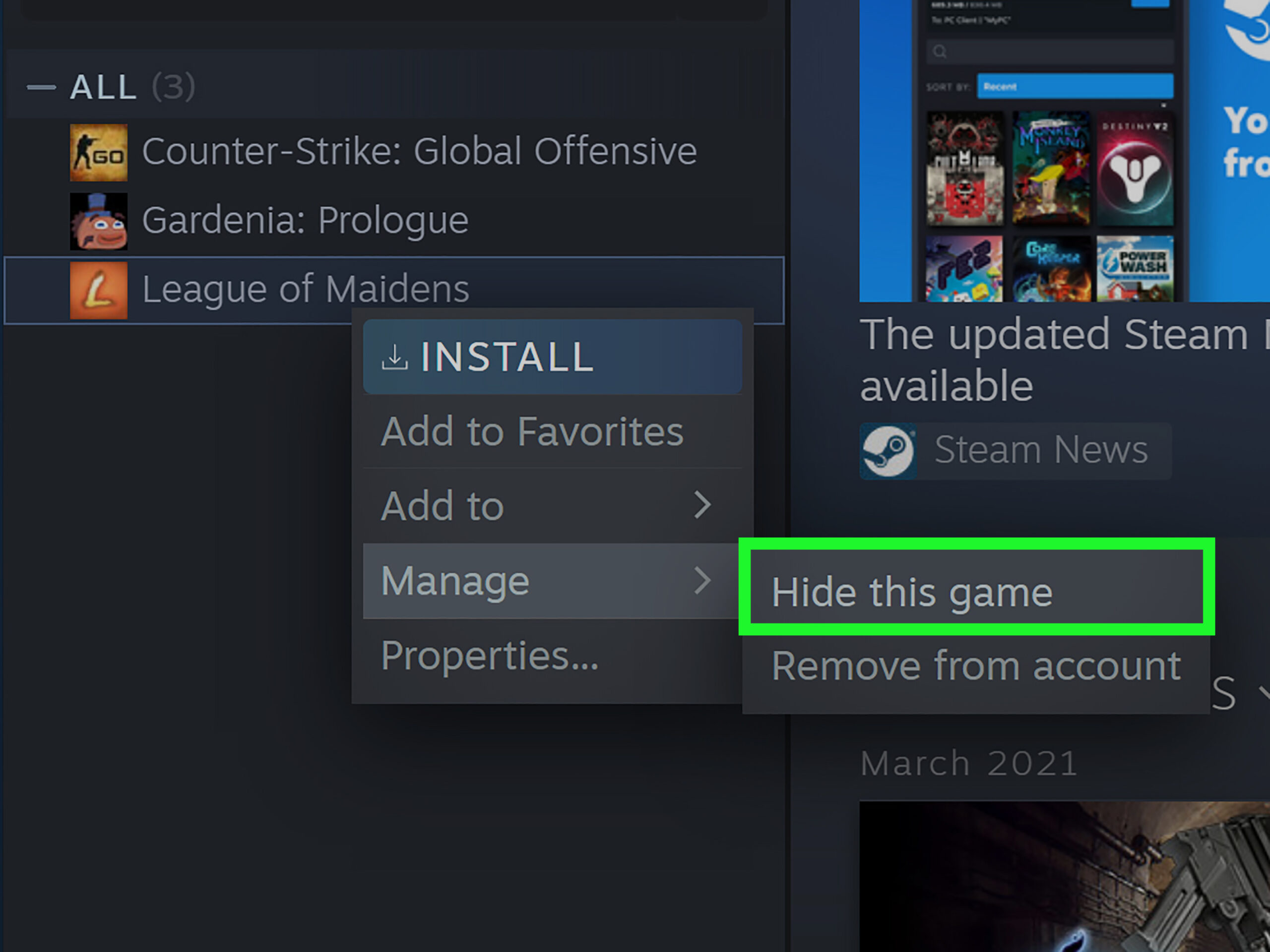
- Right-click on the game you wish to hide from your library list.
- Hover over Manage and select Hide this game. Although your achievements and playtime remain visible to others who can see your profile, the game itself will no longer be visible in your library to anyone with access.
- To make the game visible again, repeat the process and choose Remove from hidden.
- This method is useful if you want to keep certain titles discreet, especially for personal reasons or surprise gifts.
Additional Tips for Enhanced Privacy
- Regularly review your profile privacy settings to ensure your desired level of visibility.
- Use third-party tools cautiously, as they may not always align with Steam’s privacy policies.
- Be mindful that hiding games does not prevent friends from seeing your activity if your profile is public; adjusting privacy levels is essential.
Relevant Resources
For more detailed guidance on managing your gaming profile and privacy, consider exploring the official Steam support pages. Also, if you’re interested in developing your own gaming ecosystem or understanding the costs involved, see this resource on creating gaming consoles or this guide on building sustainable mobile gaming platforms.
By carefully managing your profile settings, notifications, and library visibility, you can enjoy gaming on Steam while maintaining the privacy you desire. Whether you’re playing casually or just want to keep your activity discreet, these methods provide reliable options to stay in control.